

Connect AI Squared to Weaviate
This guide will help you configure the Weaviate Connector in AI Squared to access and transfer data to your Weaviate collection.Prerequisites
Before proceeding, ensure you have your API URL and API key.Step-by-Step Guide to Connect to your Weaviate collection
Step 1: Navigate to Weaviate
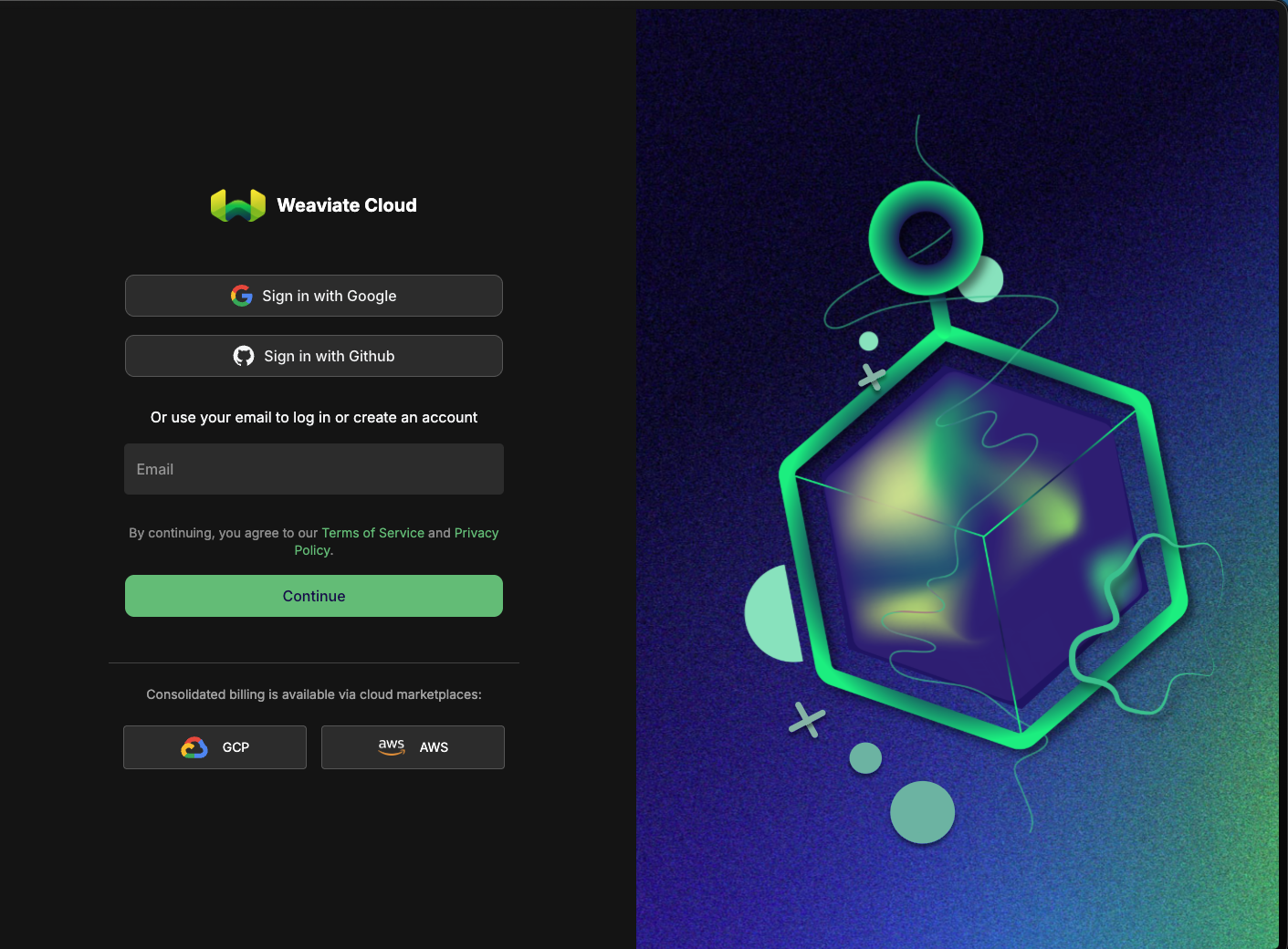
Start by logging into your Weaviate account.- Sign in to your Weaviate account at Weaviate Cloud Console
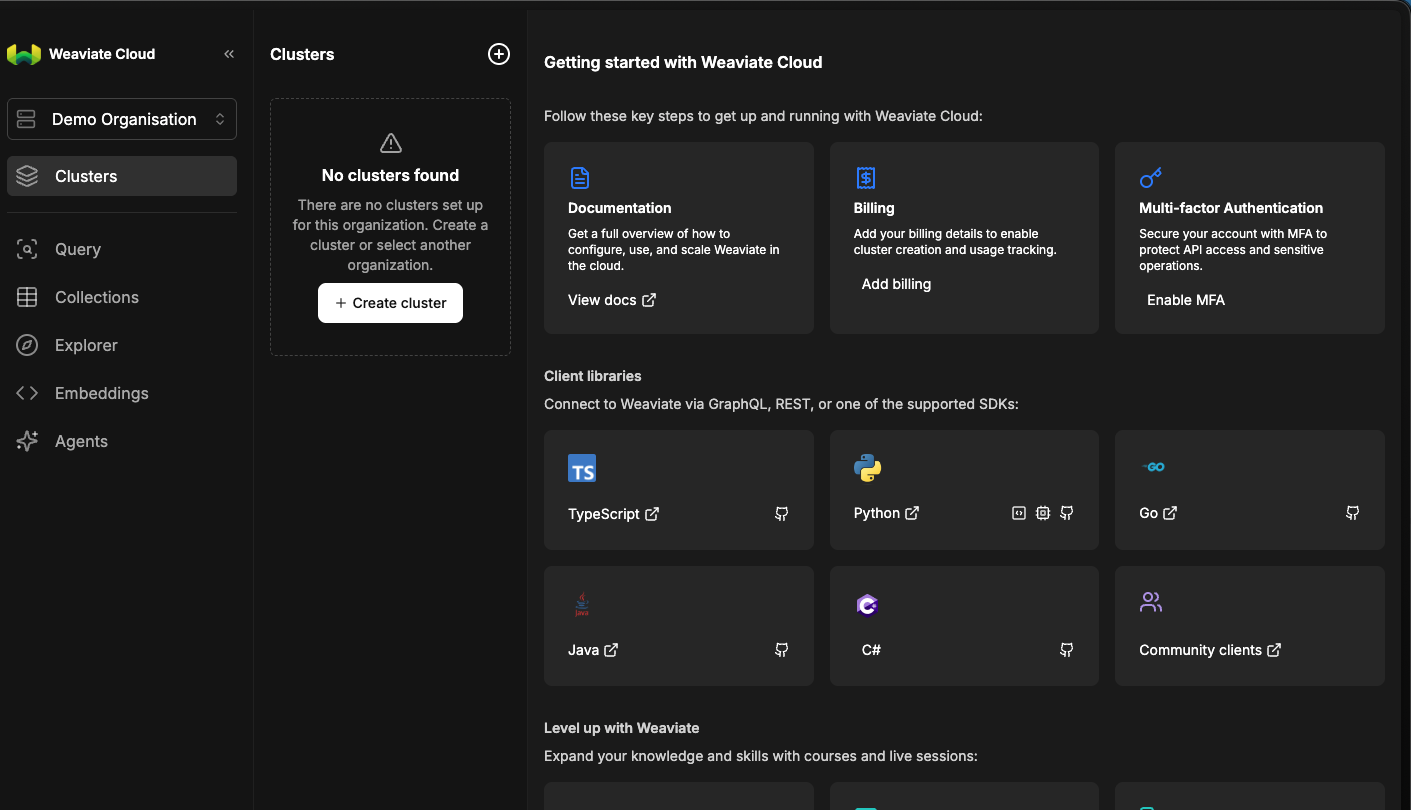
- Select Clusters from the side bar.
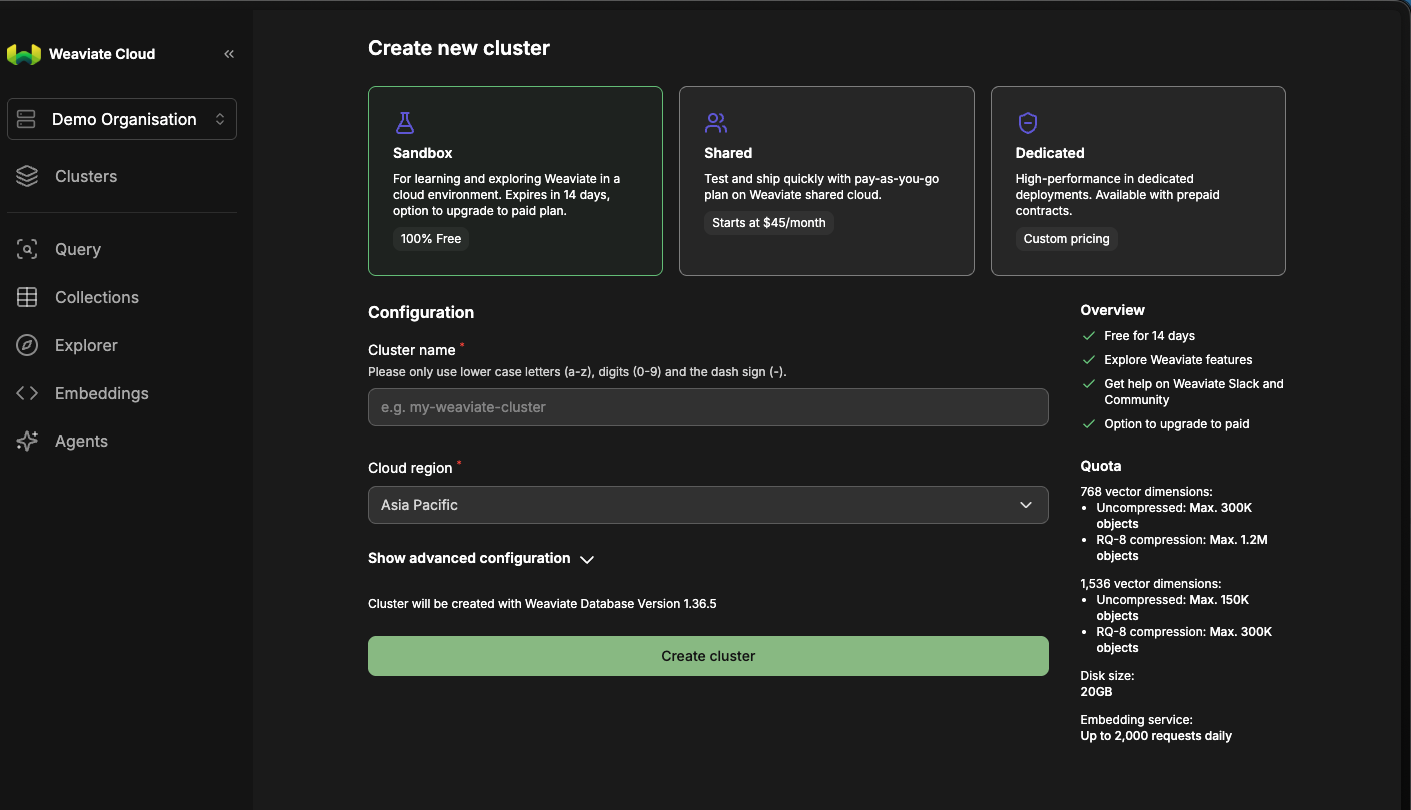
- Select your cluster to see more details.
Step 2: Locate Weaviate Configuration Details
Once in your Weaviate cluster, you’ll find the necessary configuration details: API URL:- Click on the Details tab of your cluster.
- Copy the Cluster URL (API URL).
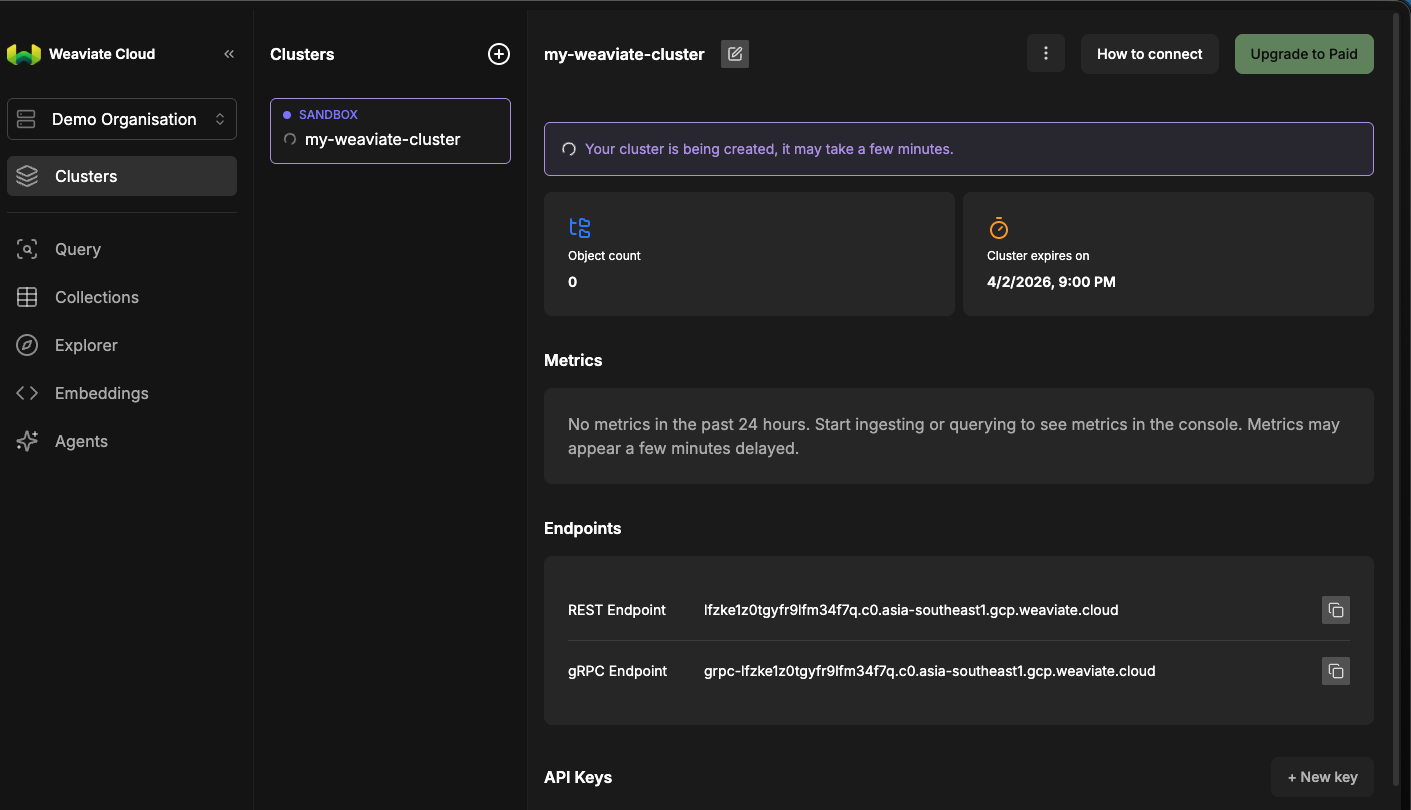
- Click on the API Keys tab.
- If you haven’t created an API key before, click on Create to generate a new one. Make sure to copy the API Key as it is shown only once.

Step 3: Configure Weaviate Connector in Your Application
Now that you have gathered all the necessary details, enter the following information in your application:- API Key: The authentication key used to access your Weaviate cluster.
- API URL: The endpoint where your Weaviate cluster is hosted.
Step 4: Test the Weaviate Connection
After configuring the connector in your application:- Save the configuration settings.
- Test the connection to Weaviate from your application to ensure everything is set up correctly.
Supported sync modes
Performance features
Batch write support
The Weaviate destination connector supports efficient batch writes with the following capabilities:- Batch operations: Records are written in batches using Weaviate’s batch create API for optimal performance
- Upsert support: When an
idfield is provided, the connector generates a deterministic UUID to enable upsert behavior, preventing duplicate records - Automatic type coercion: Property values are automatically coerced to match the Weaviate collection schema (text, integer, number, boolean, and date types)
- Vector support: Each record can include a
vectorfield containing embedding arrays for semantic search and AI-powered applications