> ## Documentation Index
> Fetch the complete documentation index at: https://docs.squared.ai/llms.txt
> Use this file to discover all available pages before exploring further.
# SFTP
## Connect AI Squared to SFTP
The Secure File Transfer Protocol (SFTP) is a secure method for transferring files between systems. This guide will help you configure the SFTP Connector with AI Squared allows you to access your data.
### Prerequisites
Before proceeding, ensure you have the hostname/ip address, port, username, password, file path, and file name from your SFTP Server.
## Step-by-Step Guide to Connect to a SFTP Server Endpoint
### Step 1: Navigate to your SFTP Server
1. Log in to your SFTP Server.
2. Select your SFTP instances.
### Step 2: Locate SFTP Configuration Details
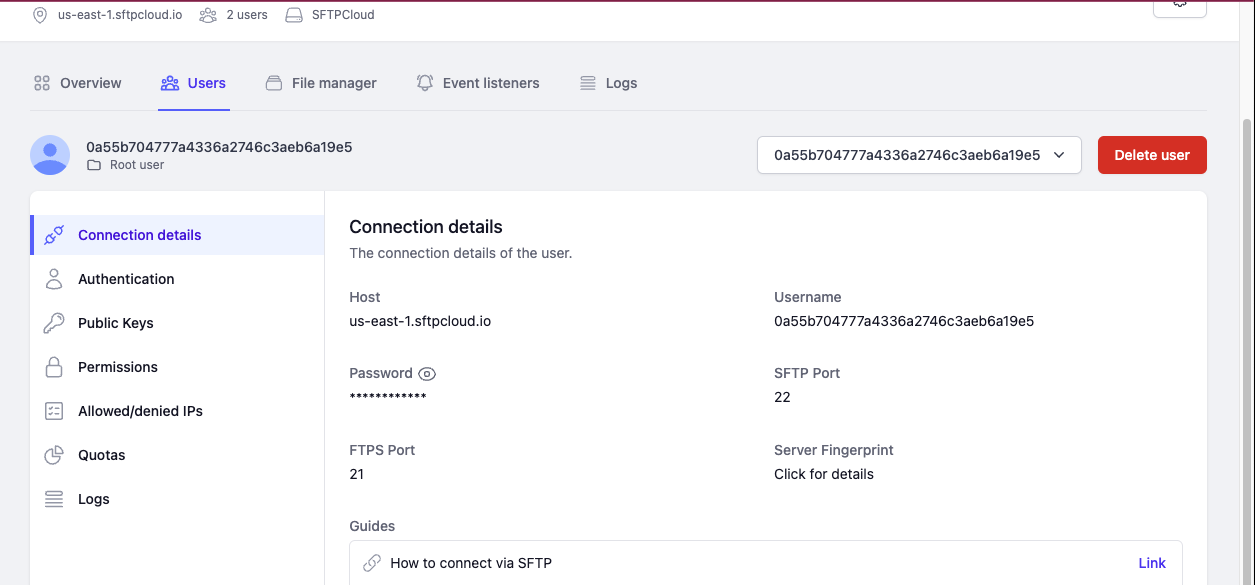
Once you're in your select instance of your SFTP Server, you'll find the necessary configuration details:
#### 1. User section
* **Host**: The hostname or IP address of the SFTP server.
* **Port**: The port number used for SFTP connections (default is 22).
* **Username**: Your username for accessing the SFTP server.
* **Password**: The password associated with the username.
 #### 2. File Manager section
* **File Path**: The directory path on the SFTP server where your file is stored.
* **File Name**: The name of the file to be read.
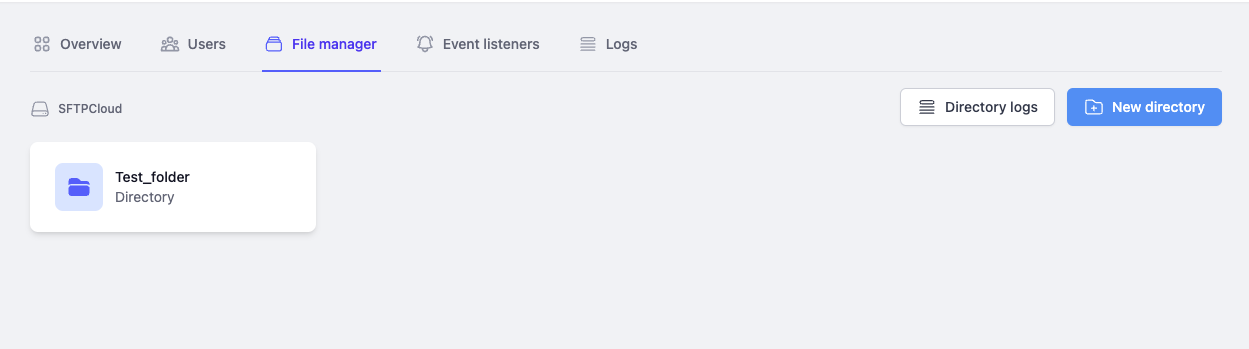
#### 2. File Manager section
* **File Path**: The directory path on the SFTP server where your file is stored.
* **File Name**: The name of the file to be read.
 ### Step 3: Configure and Test the SFTP Connection
Now that you have gathered all the necessary details, enter the necessary details for the connector in your application:
1. Save the configuration settings.
2. Test the connection to SFTP from your application to ensure everything is set up correctly.
3. Run a test query or check the connection status to verify successful connectivity.
Your SFTP connector is now configured and ready to query data from your SFTP service.
### Supported sync modes
| Mode | Supported (Yes/No/Coming soon) |
| ---------------- | ------------------------------ |
| Incremental sync | YES |
| Full refresh | Coming soon |
### Step 3: Configure and Test the SFTP Connection
Now that you have gathered all the necessary details, enter the necessary details for the connector in your application:
1. Save the configuration settings.
2. Test the connection to SFTP from your application to ensure everything is set up correctly.
3. Run a test query or check the connection status to verify successful connectivity.
Your SFTP connector is now configured and ready to query data from your SFTP service.
### Supported sync modes
| Mode | Supported (Yes/No/Coming soon) |
| ---------------- | ------------------------------ |
| Incremental sync | YES |
| Full refresh | Coming soon |