> ## Documentation Index
> Fetch the complete documentation index at: https://docs.squared.ai/llms.txt
> Use this file to discover all available pages before exploring further.
# Intuit QuickBooks
## Connect AI Squared to Intuit QuickBooks
This guide will help you configure the Intuit QuickBooks Connector in AI Squared to access and transfer data from your Intuit QuickBooks database.
### Prerequisites
Before proceeding, ensure you have the required client id, client secret, realm id, and refresh token from your Intuit QuickBooks database.
## Step-by-Step Guide to Connect to your Intuit QuickBooks Database
## Step 1: Navigate to Intuit QuickBooks Database
Start by logging into your Intuit QuickBooks Console.
1. Sign in to your Intuit QuickBooks account at [Intuit QuickBooks Console](https://developer.intuit.com/app/developer/homepage).
## Step 2: Locate Intuit QuickBooks Configuration Details
Once you're in the Intuit QuickBooks console, you'll find the necessary configuration details:
1. **Client ID, Client Secret, Realm ID, and Refresh Token:**
* Click the **My Hub** dropdown menu on the top-right of the Intuit QuickBooks Console then click **Playground**.
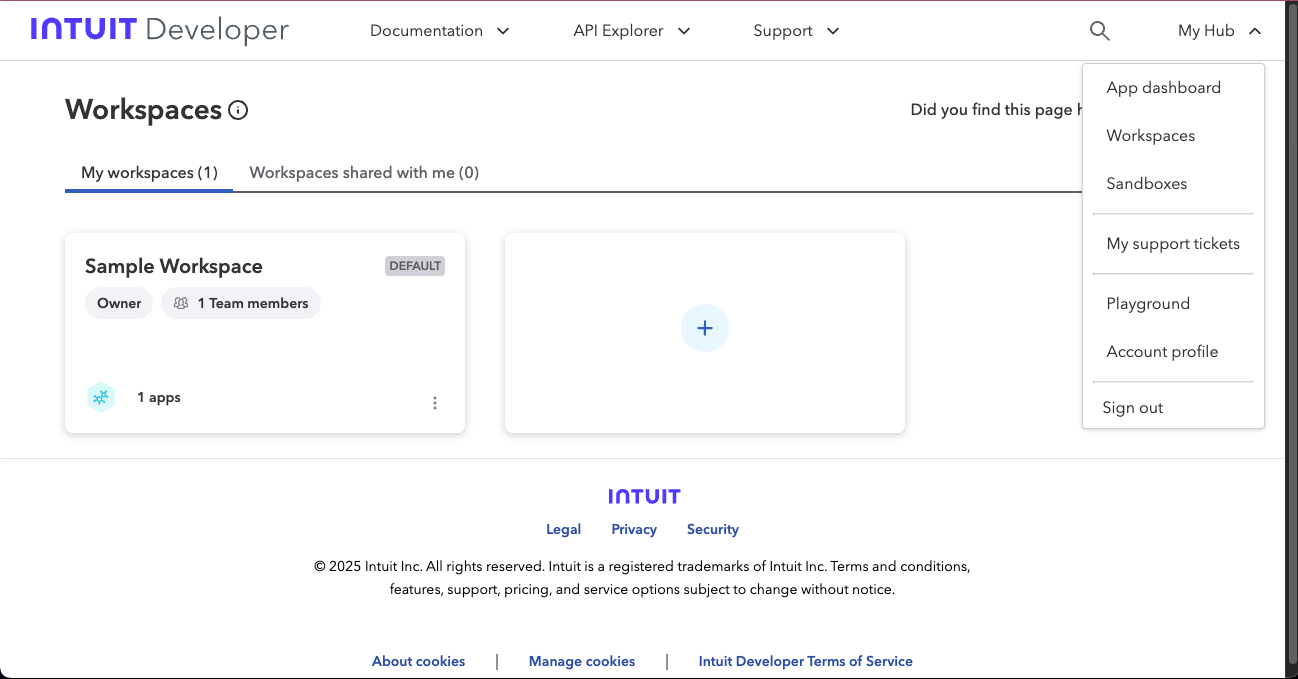 * Once in Playground follow the steps to retrive your **Client ID, Client Secret, Realm ID, and Refresh Token** and note them down.
## Step 3: Configure Intuit QuickBooks Connector in Your Application
Now that you have gathered all the necessary details, enter the following information in your application:
* **Client ID:** The unique identifier for your QuickBooks application. This is issued by Intuit when you register your app in the QuickBooks Developer Portal.
* **Client Secret:** A secure secret key associated with your Client ID. Used together with the Client ID to authenticate your app when requesting OAuth tokens.
* **Realm ID:** A unique identifier for a QuickBooks company (also known as the Company ID). Required to make API requests specific to that company account.
* **Refresh Token:** A long-lived token used to obtain a new access token when the current one expires. This is essential for maintaining a persistent connection without requiring the user to re-authenticate.
## Step 4: Test the Intuit QuickBooks Connection
After configuring the connector in your application:
1. Save the configuration settings.
2. Test the connection to Intuit QuickBooks database from your application to ensure everything is set up correctly.
3. Run a test query or check the connection status to verify successful connectivity.
Your Intuit QuickBooks connector is now configured and ready to query data from your Intuit QuickBooks database.
## Supported sync modes
| Mode | Supported (Yes/No/Coming soon) |
| ---------------- | ------------------------------ |
| Incremental sync | YES |
| Full refresh | Coming soon |
This guide will help you seamlessly connect your AI Squared application to Intuit QuickBooks Database, enabling you to leverage your database's full potential.
* Once in Playground follow the steps to retrive your **Client ID, Client Secret, Realm ID, and Refresh Token** and note them down.
## Step 3: Configure Intuit QuickBooks Connector in Your Application
Now that you have gathered all the necessary details, enter the following information in your application:
* **Client ID:** The unique identifier for your QuickBooks application. This is issued by Intuit when you register your app in the QuickBooks Developer Portal.
* **Client Secret:** A secure secret key associated with your Client ID. Used together with the Client ID to authenticate your app when requesting OAuth tokens.
* **Realm ID:** A unique identifier for a QuickBooks company (also known as the Company ID). Required to make API requests specific to that company account.
* **Refresh Token:** A long-lived token used to obtain a new access token when the current one expires. This is essential for maintaining a persistent connection without requiring the user to re-authenticate.
## Step 4: Test the Intuit QuickBooks Connection
After configuring the connector in your application:
1. Save the configuration settings.
2. Test the connection to Intuit QuickBooks database from your application to ensure everything is set up correctly.
3. Run a test query or check the connection status to verify successful connectivity.
Your Intuit QuickBooks connector is now configured and ready to query data from your Intuit QuickBooks database.
## Supported sync modes
| Mode | Supported (Yes/No/Coming soon) |
| ---------------- | ------------------------------ |
| Incremental sync | YES |
| Full refresh | Coming soon |
This guide will help you seamlessly connect your AI Squared application to Intuit QuickBooks Database, enabling you to leverage your database's full potential.