> ## Documentation Index
> Fetch the complete documentation index at: https://docs.squared.ai/llms.txt
> Use this file to discover all available pages before exploring further.
# Google Drive
## Connect AI Squared to Google Drive
This guide will help you configure the Google Drive Connector in AI Squared to access your Google Drive files.
### Prerequisites
Before initiating the Google Drive connector setup, ensure you have created or have access to a [Google cloud account](https://console.cloud.google.com).
## Step-by-Step Guide to Connect to Google Drive.
### Step 1: Create Service Account
1. Navigate to the [Service Accounts](https://console.cloud.google.com/projectselector2/iam-admin/serviceaccounts) page in your Google Cloud console.
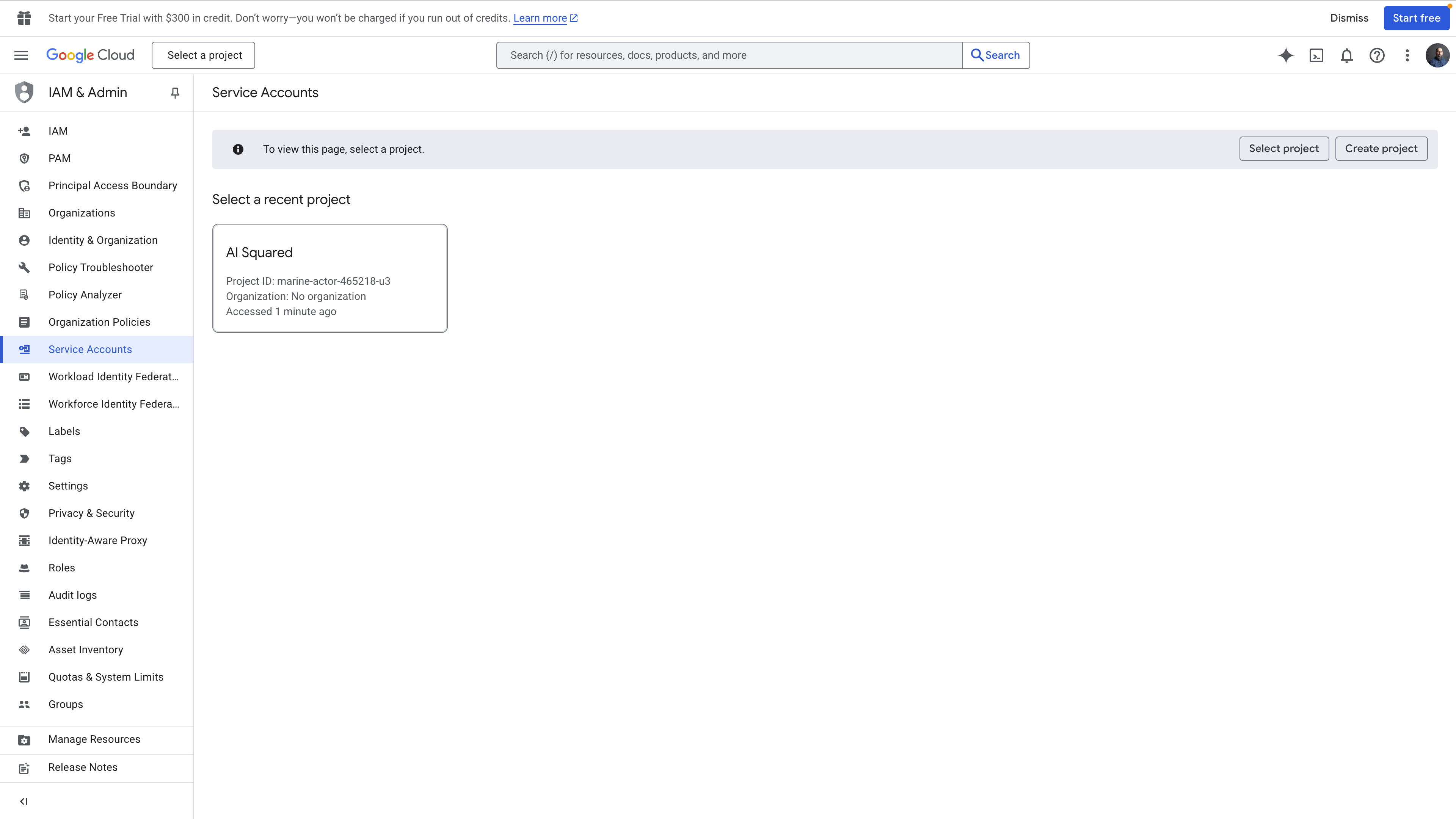 2. Choose an existing project or create a new one.
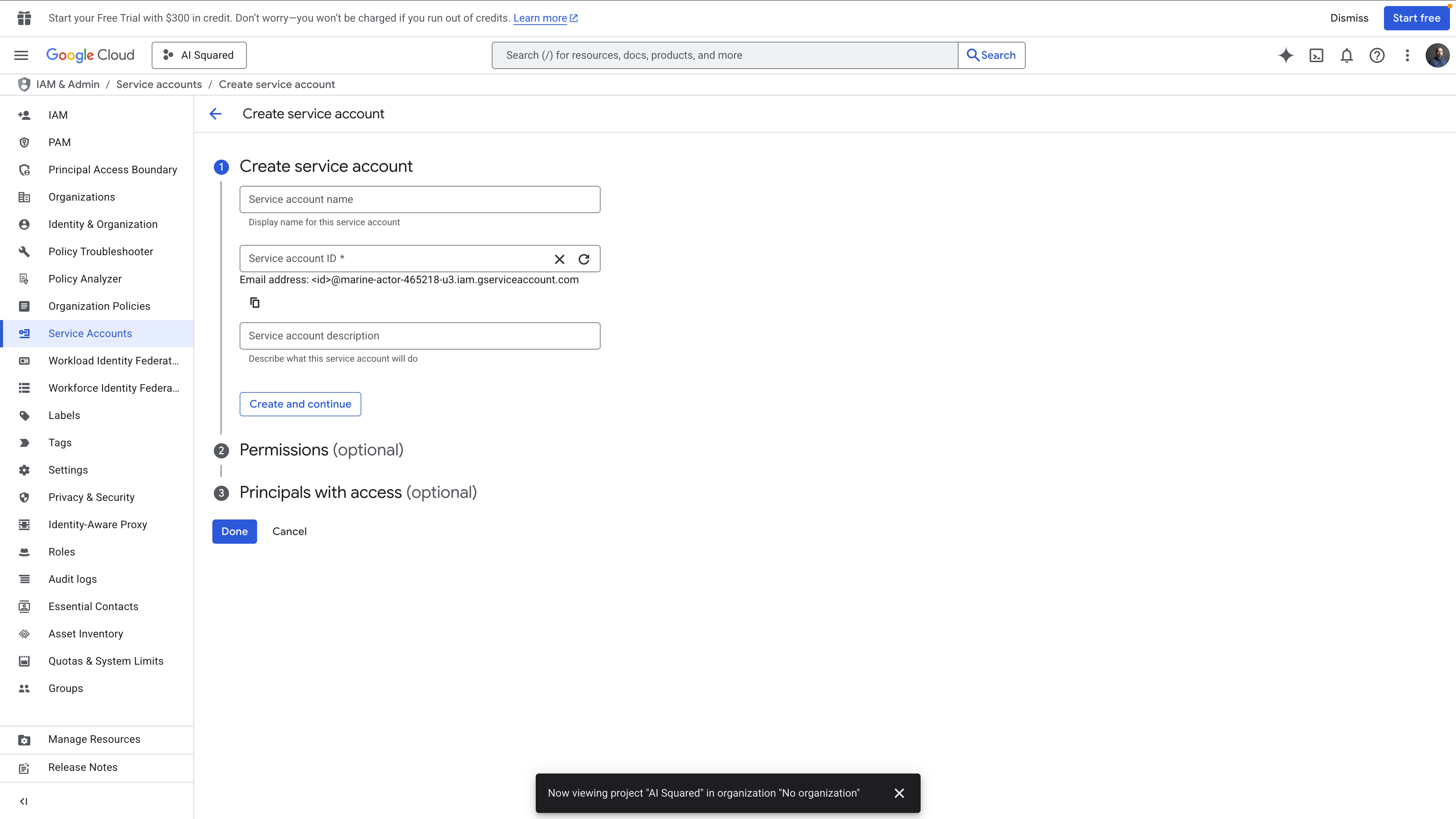 3. Click + Create service account, enter its name and description, then click Create and Continue.
4. Assign appropriate permissions, recommending the Editor role, then click Continue.
### Step 2: Generate a Key
1. Access the [API Console > Credentials](https://console.cloud.google.com/apis/credentials) page, select your service account's email.
3. Click + Create service account, enter its name and description, then click Create and Continue.
4. Assign appropriate permissions, recommending the Editor role, then click Continue.
### Step 2: Generate a Key
1. Access the [API Console > Credentials](https://console.cloud.google.com/apis/credentials) page, select your service account's email.
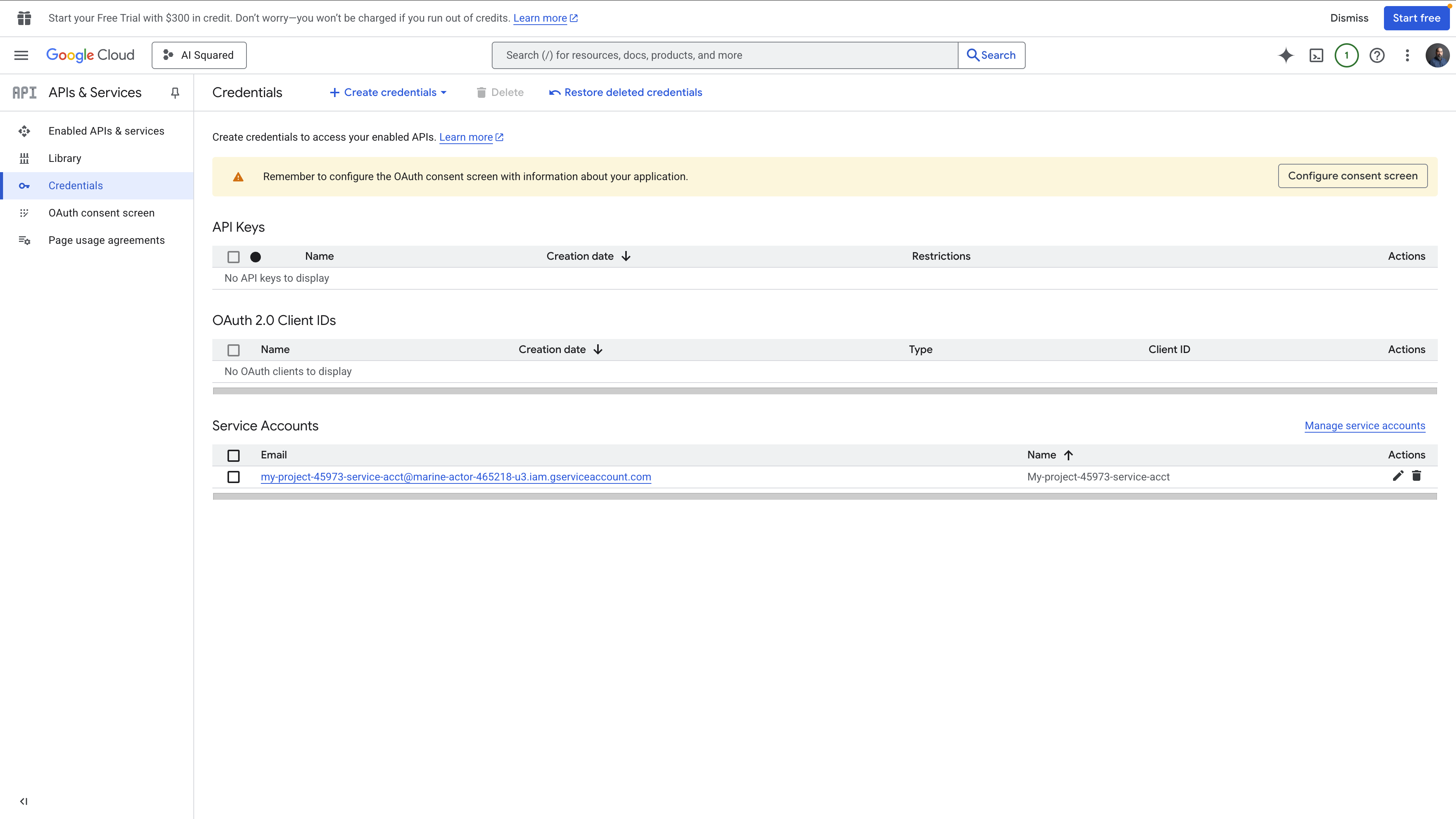 2. In the Keys tab, click + Add key and select Create new key.
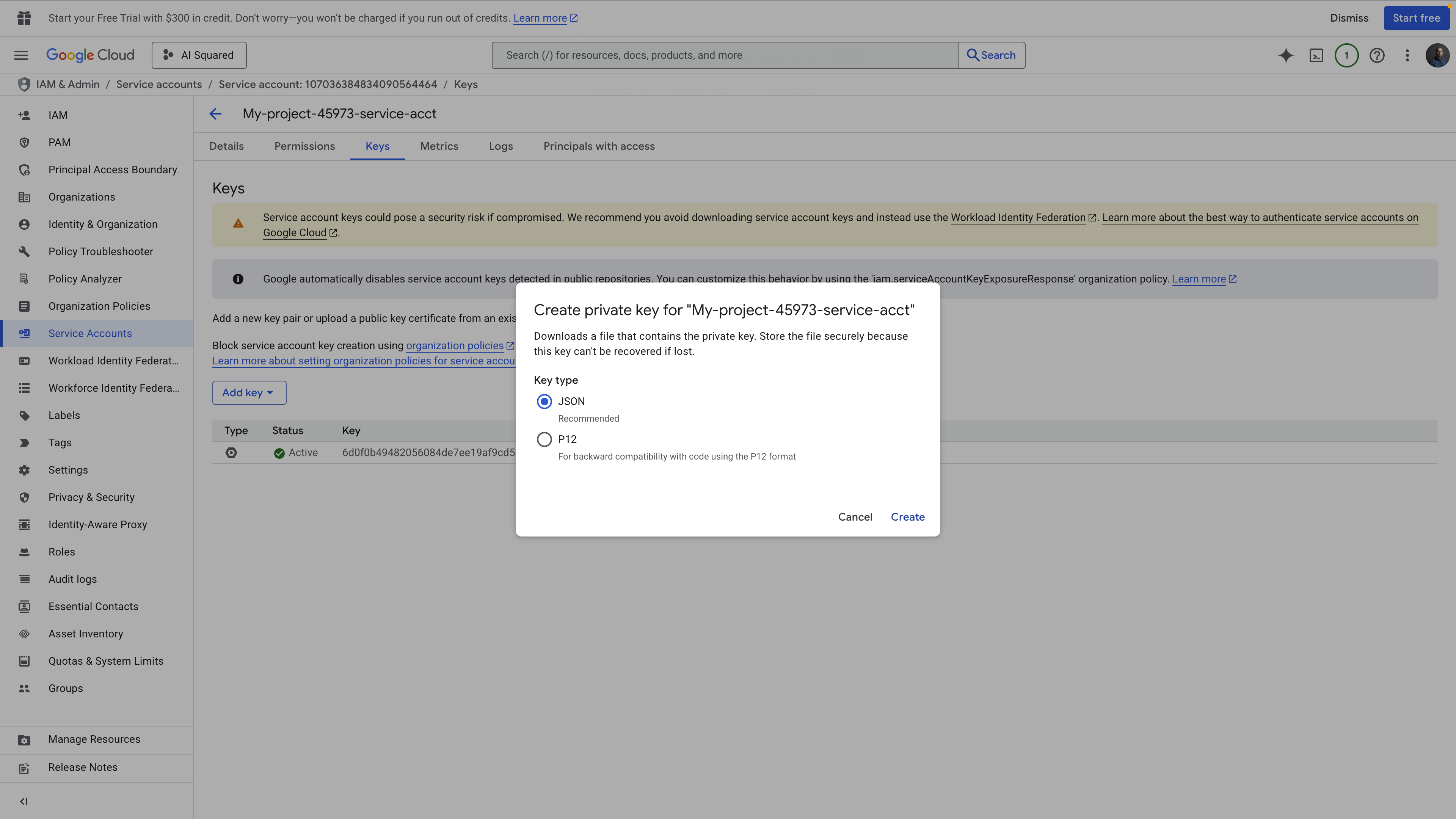
3. Choose JSON as the Key type to download your authentication JSON key file. Click Continue.
2. In the Keys tab, click + Add key and select Create new key.
3. Choose JSON as the Key type to download your authentication JSON key file. Click Continue.
 ### Step 3: Enable the Google Drive API
1. Navigate to the [API Console > Library](https://console.cloud.google.com/apis/library) page.
### Step 3: Enable the Google Drive API
1. Navigate to the [API Console > Library](https://console.cloud.google.com/apis/library) page.
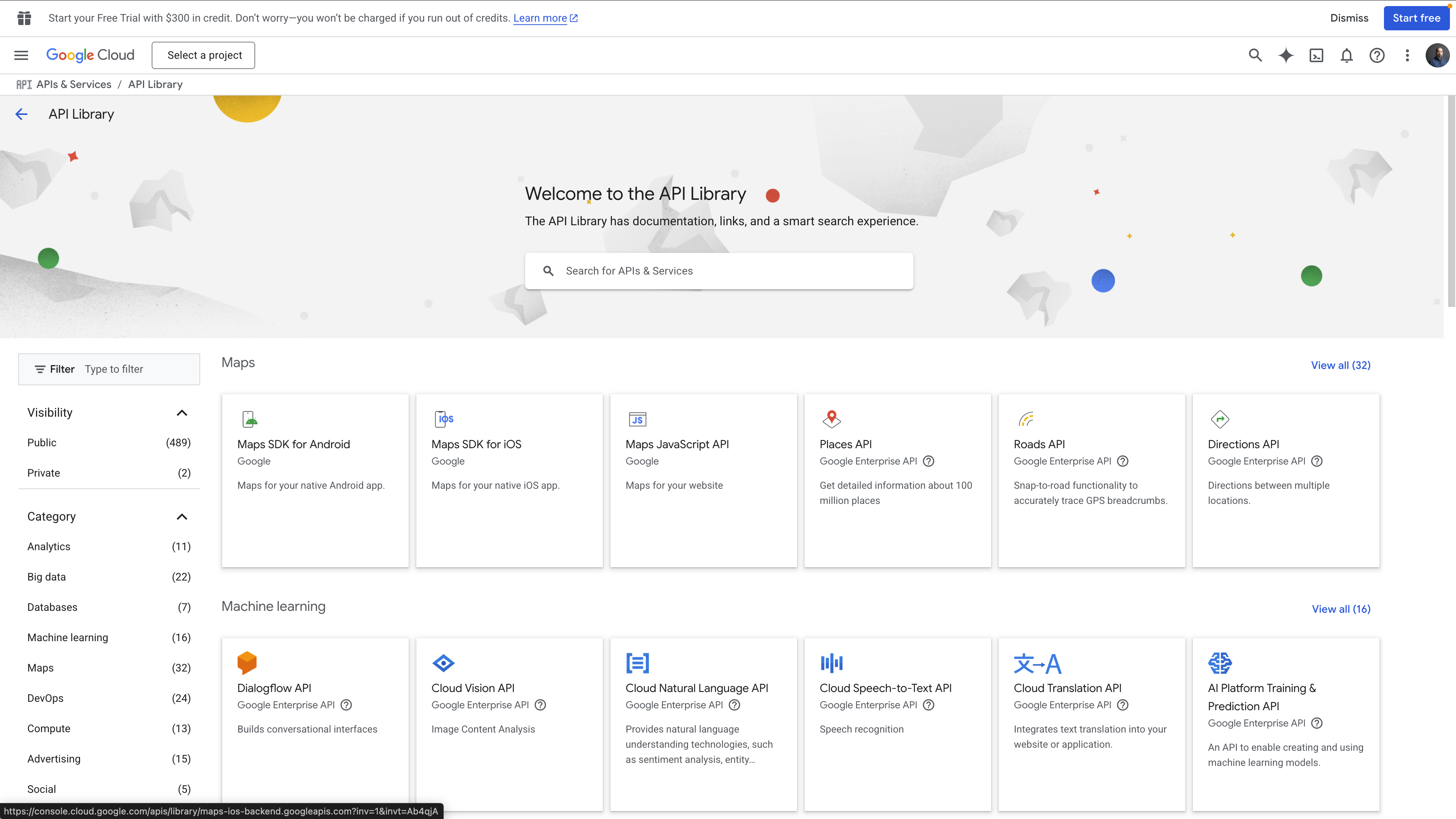 2. Verify that the correct project is selected at the top.
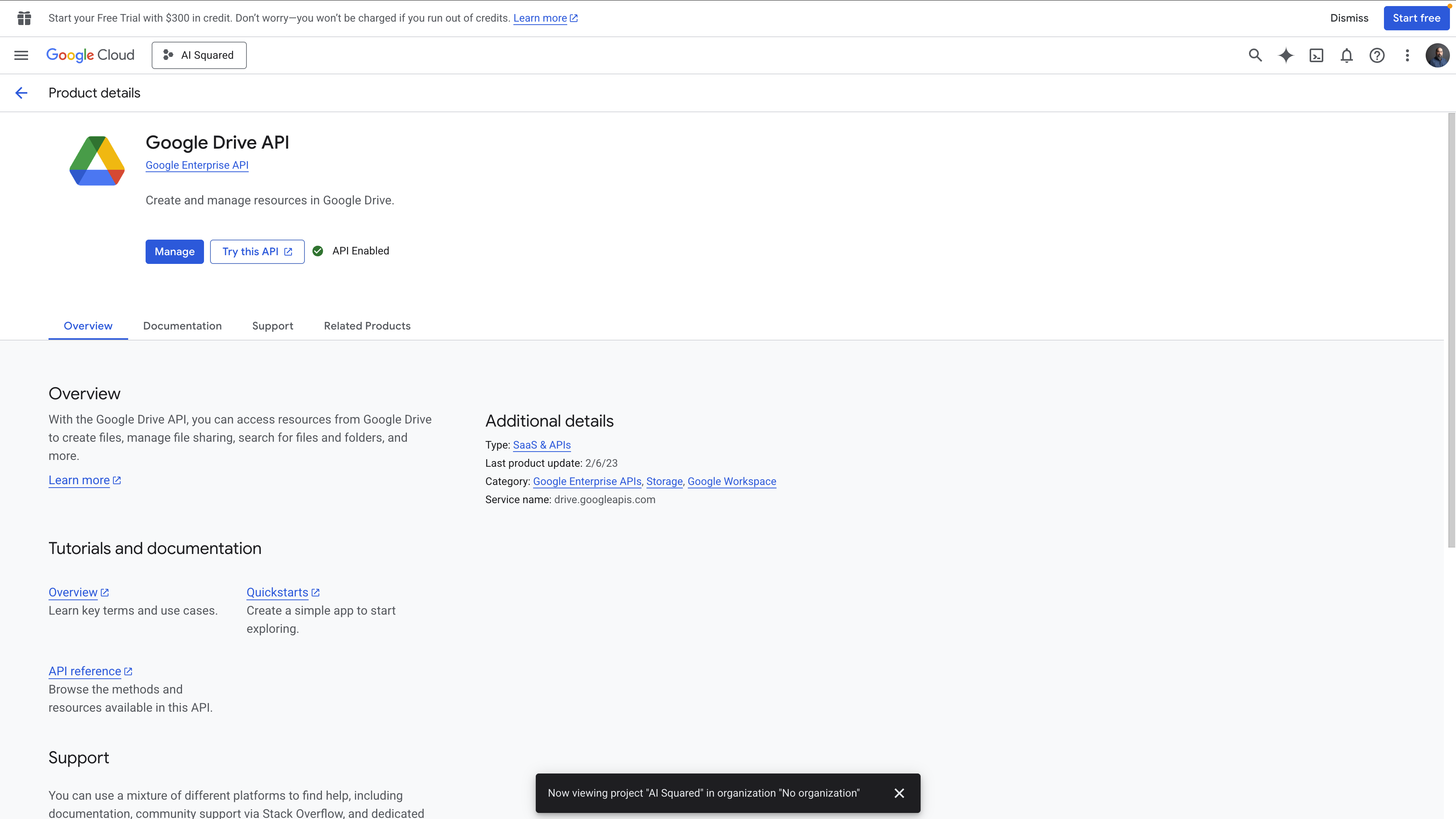
3. Find and select the Google Drive API.
4. Click ENABLE.
2. Verify that the correct project is selected at the top.
3. Find and select the Google Drive API.
4. Click ENABLE.
 ### Step 4: Configure Google Drive connector
Before proceeding, ensure you have the JSON file downloaded during the previous steps.
Enter the following information during connector setup:
**Credentials**
* **type**: Type of account to use for authentication. Select service\_account.
* **project\_id**: Obtained from downloaded JSON.
* **private\_key\_id**: Obtained from downloaded JSON.
* **private\_key**: Obtained from downloaded JSON.
* **client\_email**: Obtained from downloaded JSON.
* **client\_id**: Obtained from downloaded JSON.
* **auth\_uri**: Obtained from downloaded JSON.
* **token\_uri**: Obtained from downloaded JSON.
* **auth\_provider\_x509\_cert\_url**: Obtained from downloaded JSON.
* **client\_x509\_cert\_url**: Obtained from downloaded JSON.
* **universe\_domain**: Obtained from downloaded JSON.
**Options**
* **Folder**: The folder to read files from. If not specified, reads from root folder.
* **Read from Subfolders**: When enabled, it reads files from subfolders in the specified folder.
* **File type**: Type of files to read.
* **document\_type**: The type of document to parse. Supported: invoices/receipts.
* **fields**: List of fields to extract from the documents.
### Step 5: Test the Google Drive connection
1. Save the configuration settings.
2. Test the connection to Google Drive to ensure everything is setup correctly.
3. Run a test query or check the connection status to verify successful connectivity.
Your Google Drive connector is now configured.
## Supported sync modes
| Mode | Supported (Yes/No/Coming soon) |
| ---------------- | ------------------------------ |
| Incremental sync | YES |
### Step 4: Configure Google Drive connector
Before proceeding, ensure you have the JSON file downloaded during the previous steps.
Enter the following information during connector setup:
**Credentials**
* **type**: Type of account to use for authentication. Select service\_account.
* **project\_id**: Obtained from downloaded JSON.
* **private\_key\_id**: Obtained from downloaded JSON.
* **private\_key**: Obtained from downloaded JSON.
* **client\_email**: Obtained from downloaded JSON.
* **client\_id**: Obtained from downloaded JSON.
* **auth\_uri**: Obtained from downloaded JSON.
* **token\_uri**: Obtained from downloaded JSON.
* **auth\_provider\_x509\_cert\_url**: Obtained from downloaded JSON.
* **client\_x509\_cert\_url**: Obtained from downloaded JSON.
* **universe\_domain**: Obtained from downloaded JSON.
**Options**
* **Folder**: The folder to read files from. If not specified, reads from root folder.
* **Read from Subfolders**: When enabled, it reads files from subfolders in the specified folder.
* **File type**: Type of files to read.
* **document\_type**: The type of document to parse. Supported: invoices/receipts.
* **fields**: List of fields to extract from the documents.
### Step 5: Test the Google Drive connection
1. Save the configuration settings.
2. Test the connection to Google Drive to ensure everything is setup correctly.
3. Run a test query or check the connection status to verify successful connectivity.
Your Google Drive connector is now configured.
## Supported sync modes
| Mode | Supported (Yes/No/Coming soon) |
| ---------------- | ------------------------------ |
| Incremental sync | YES |