> ## Documentation Index
> Fetch the complete documentation index at: https://docs.squared.ai/llms.txt
> Use this file to discover all available pages before exploring further.
# Slack
## Usecase
Notify sales or customer support teams about significant customer events,
like contract renewals or support tickets, directly in Slack.
Share real-time insights and reports in Slack channels to foster
collaborative analysis and decision-making among teams. This is particularly
useful for remote and distributed teams
Integrate Slack with operational systems to streamline operations. For
instance, sending real-time alerts about system downtimes, performance
bottlenecks, or successful deployments to relevant engineering or operations
Slack channels.
Trigger marketing actions based on customer behavior. For example, if a
customer action indicates high engagement, a notification can be sent to the
marketing team to follow up with personalized content or offers.
## Slack Connector Configuration and Credential Retrieval Guide
### Prerequisite Requirements
To access Slack through AI Squared, you must authenticate using an API Token. This authentication can be obtained through a Slack App. However, if you already possess one, it remains valid for use with this integration.
Given that AI Squared operates as a reverse ETL platform, requiring write access to perform its functions, we recommend creating a restricted API key that permits write access specifically for AI Squared's use.
This strategy enables you to maintain control over the extent of actions AI Squared can execute within your Slack environment, ensuring security and compliance with your data governance policies.
Link to view your [Slack Apps](https://api.slack.com/apps).
### Destination Setup
To facilitate the integration of your Slack destination connector with AI Squared, please follow the detailed steps below:
Initiate the process by selecting the "Create New App" option.
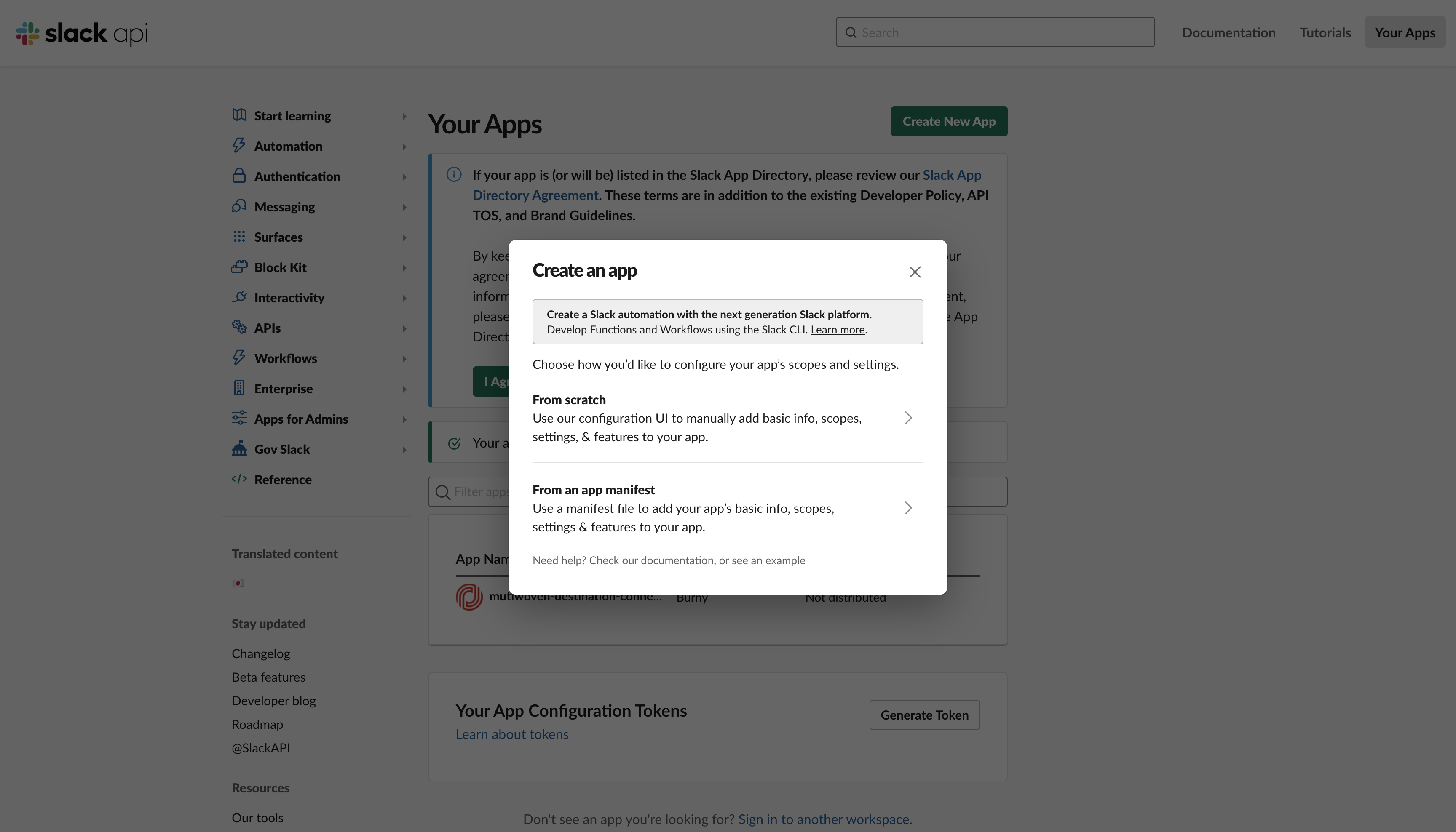 You will be required to create a Bot app from the ground up. To do this, select the "from scratch" option.
Proceed by entering your desired App Name and selecting a workspace where the app will be deployed.
You will be required to create a Bot app from the ground up. To do this, select the "from scratch" option.
Proceed by entering your desired App Name and selecting a workspace where the app will be deployed.
 Navigate to the **Add features and functionality** menu and select **Bots** to add this capability to your app.
 Within the menu on the side labeled as **Features** column, locate and click on **OAuth & Permissions**.
 In the "OAuth & Permissions" section, add the scope **chat:write** to define the permissions for your app.
 To finalize the Bot installation, click on "Install to workspace" found in the "OAuth Tokens for Your Workspace" section.
 Upon successful installation, a Bot User OAuth Token will be generated.
It is crucial to copy this token as it is required for the configuration of the Slack destination connector within AI Squared.
Upon successful installation, a Bot User OAuth Token will be generated.
It is crucial to copy this token as it is required for the configuration of the Slack destination connector within AI Squared.
 Additionally, acquiring the Channel ID is essential for configuring the Slack destination.
This ID can be retrieved by right-clicking on the channel intended for message dispatch through the newly created bot.
From the context menu, select **View channel details**
Additionally, acquiring the Channel ID is essential for configuring the Slack destination.
This ID can be retrieved by right-clicking on the channel intended for message dispatch through the newly created bot.
From the context menu, select **View channel details**
 Locate and copy the Channel ID, which is displayed at the lower left corner of the tab.
