> ## Documentation Index
> Fetch the complete documentation index at: https://docs.squared.ai/llms.txt
> Use this file to discover all available pages before exploring further.
# Qdrant
## Connect AI Squared to Qdrant
This guide will help you configure the Qdrant Connector in AI Squared to access and transfer data to your Qdrant collection.
### Prerequisites
Before proceeding, ensure you have your API url and API key.
## Step-by-Step Guide to Connect to your Qdrant collection
## Step 1: Navigate to Qdrant
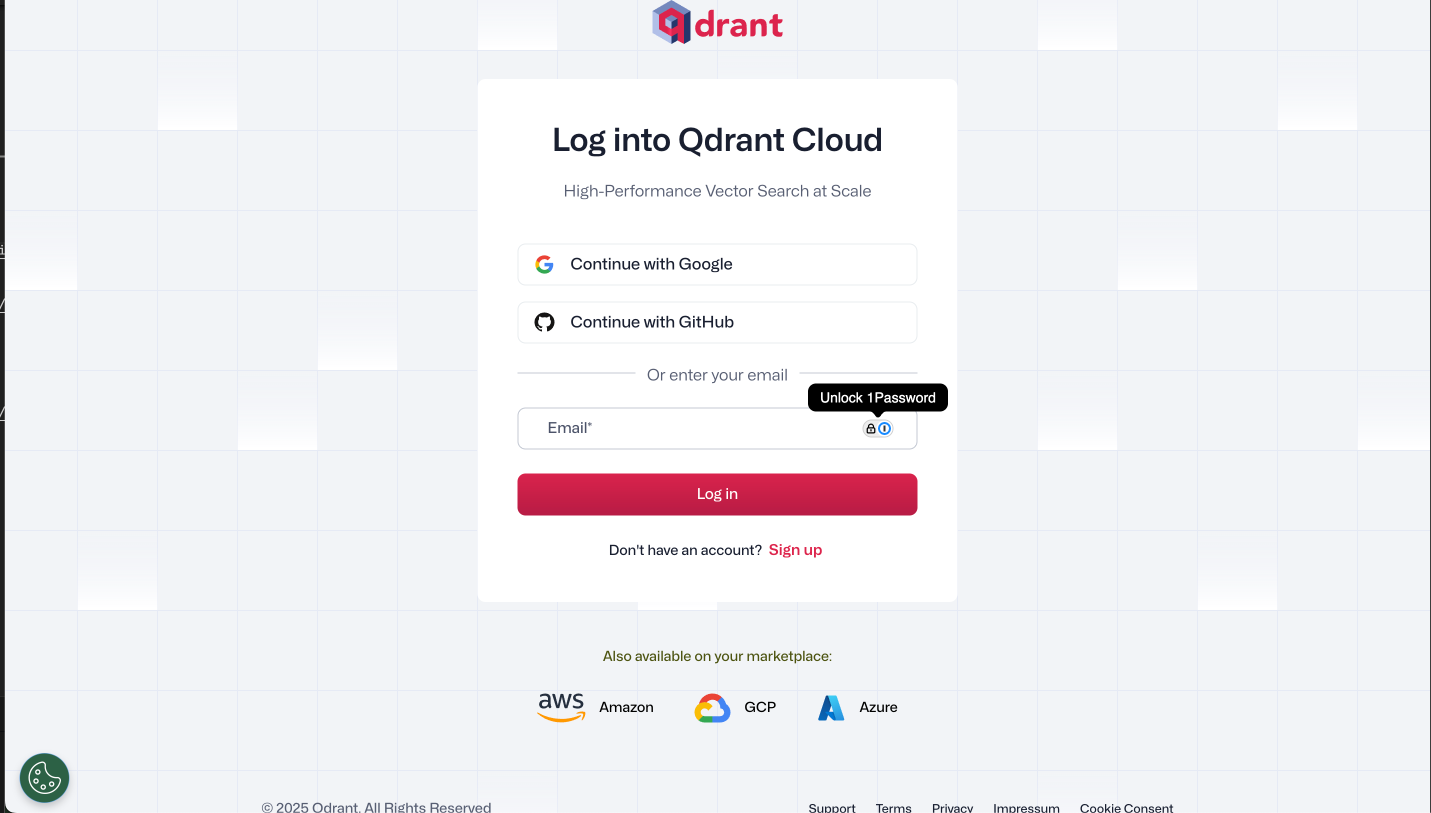
Start by logging into your Qdrant account.
1. Sign in to your Qdrant account at [Qdrant Account](https://login.cloud.qdrant.io/u/login/identifier?state=hKFo2SB6bDNQQTlydWFFZnpySEc0TXk1QlVWVHJ0Tk9MTDNyeqFur3VuaXZlcnNhbC1sb2dpbqN0aWTZIDVCYm9qV010WXVRSXZvZVFMMkFiLW8wXzl5SkhvZnM4o2NpZNkgckkxd2NPUEhPTWRlSHVUeDR4MWtGMEtGZFE3d25lemc)
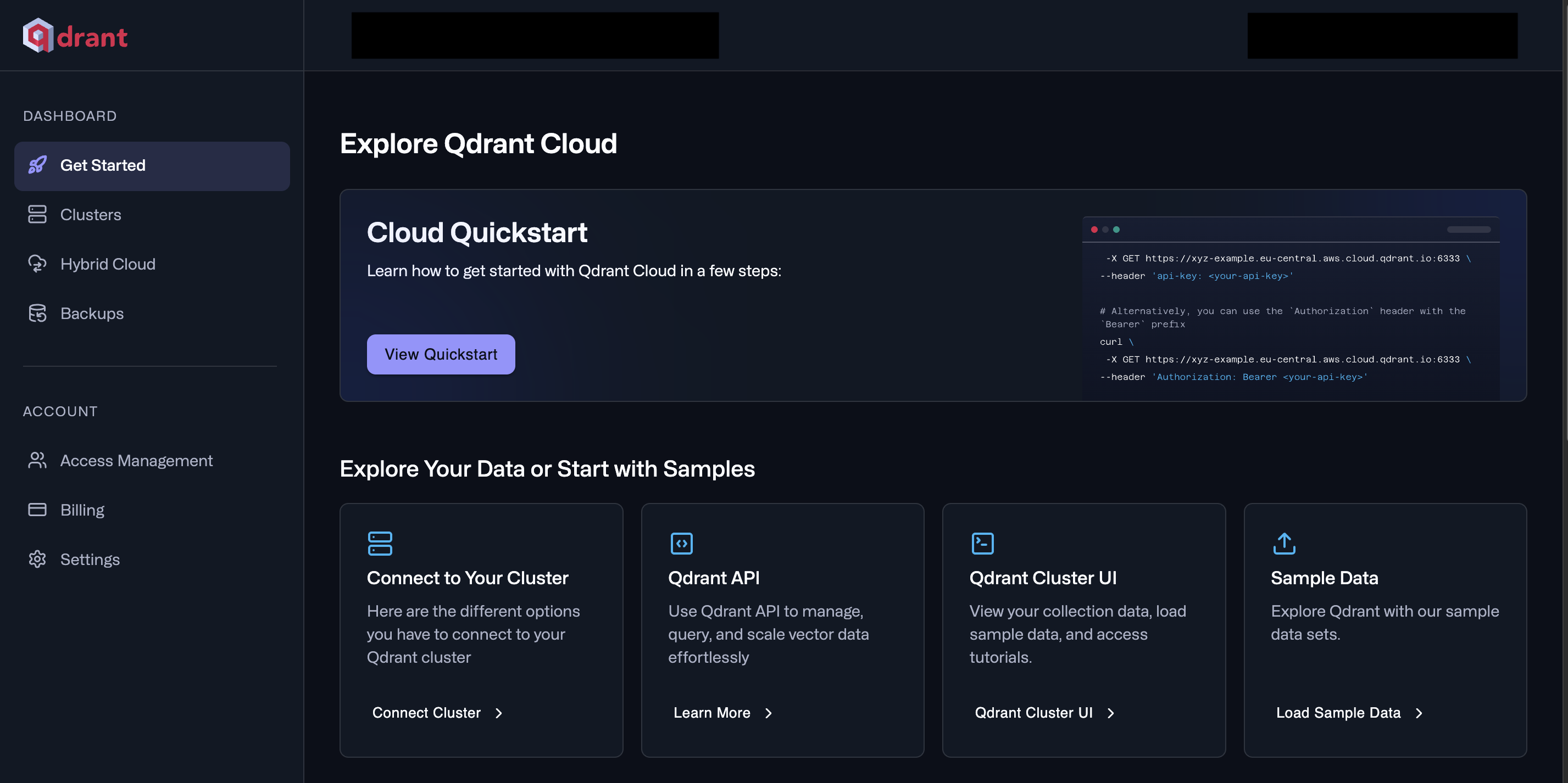
 2. Select Clusters from the side bar.
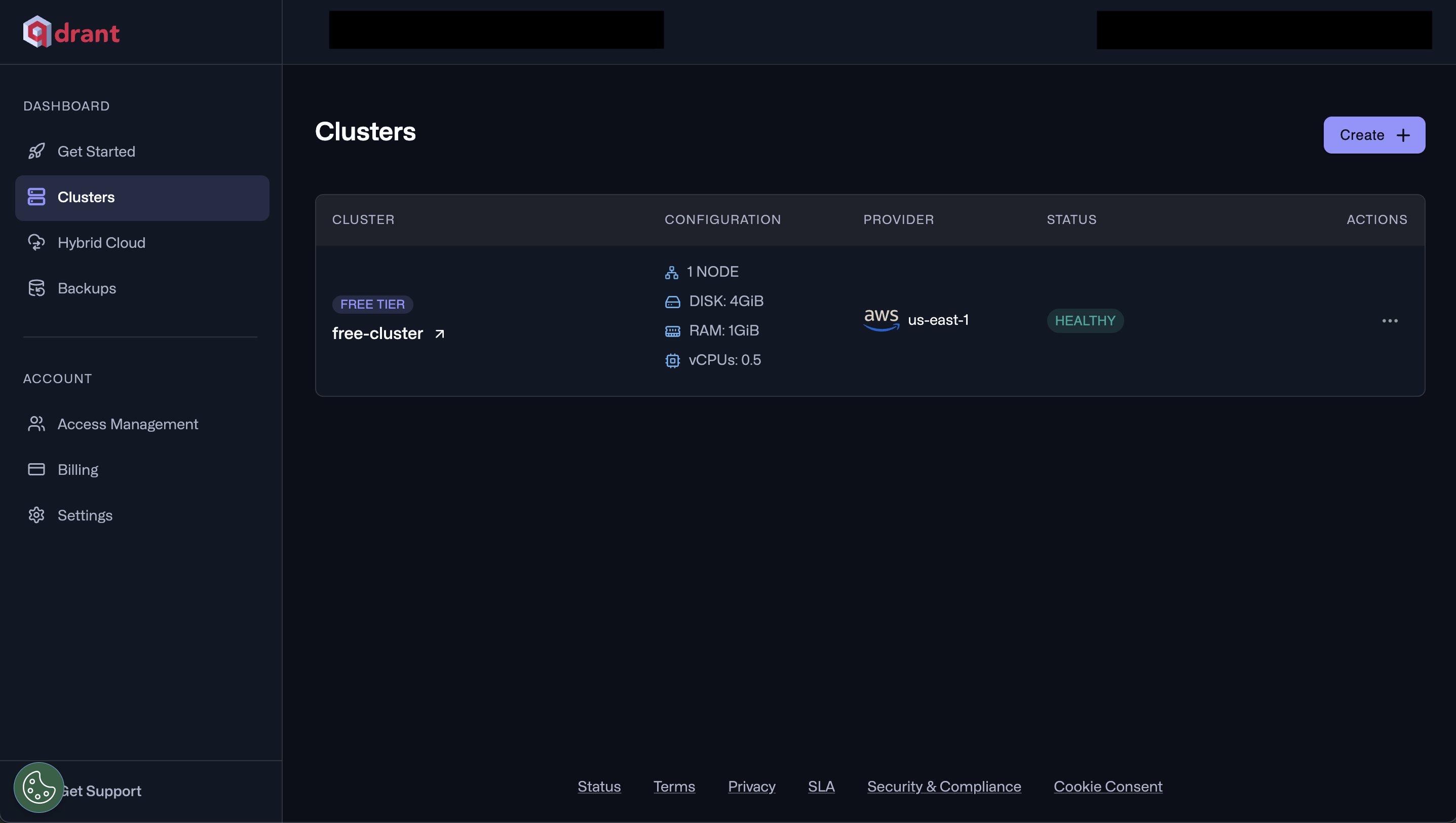
 3. Select your cluster to see more details.
 ## Step 2: Locate Qdrant Configuration Details
Once in your Qdrant cluster, you'll find the necessary configuration details:
**API Url:**
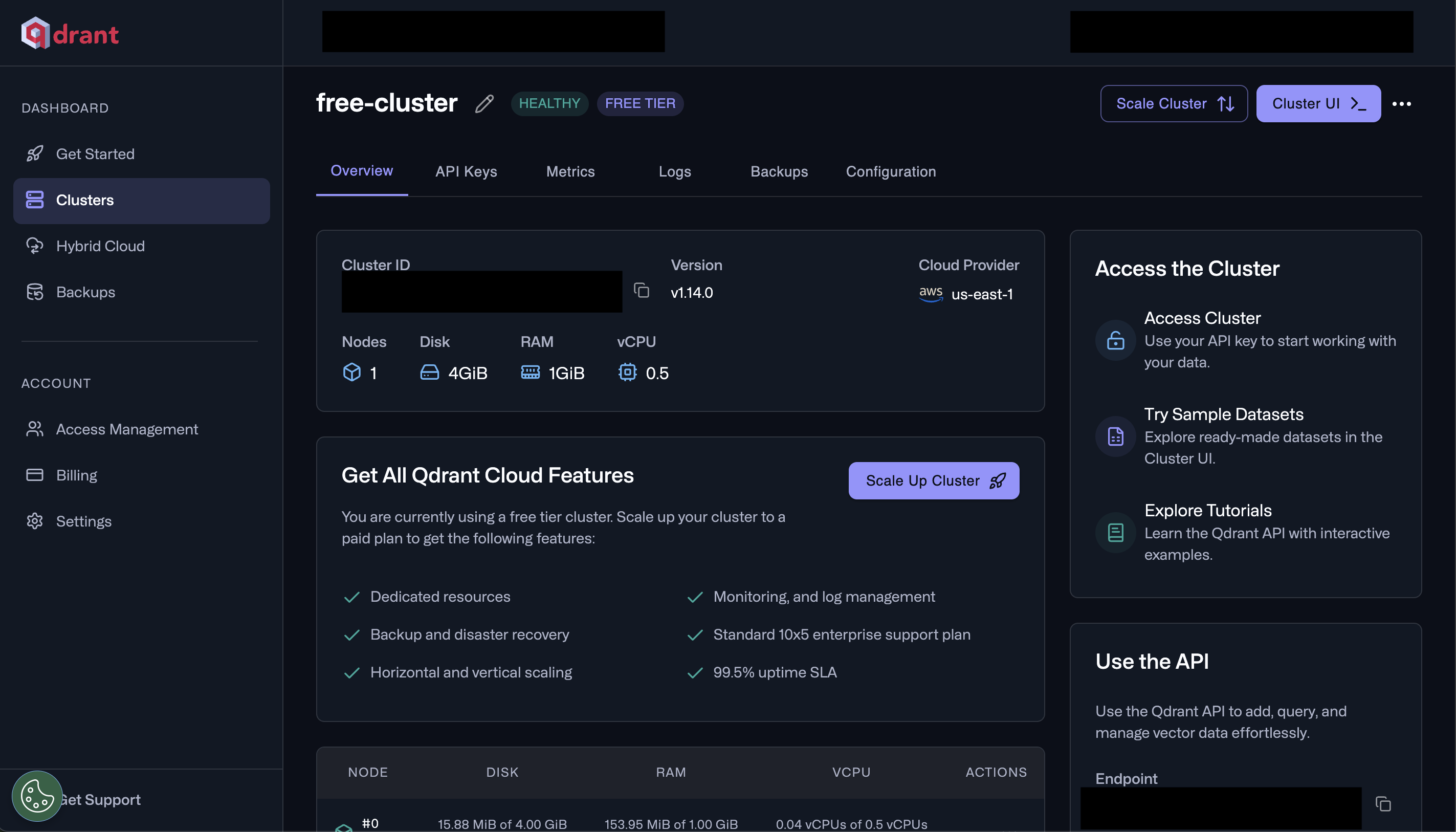
* Click on the Overview tab, and scroll down to the Use the API section.
* Copy the Endpoint URL (API Url).
## Step 2: Locate Qdrant Configuration Details
Once in your Qdrant cluster, you'll find the necessary configuration details:
**API Url:**
* Click on the Overview tab, and scroll down to the Use the API section.
* Copy the Endpoint URL (API Url).
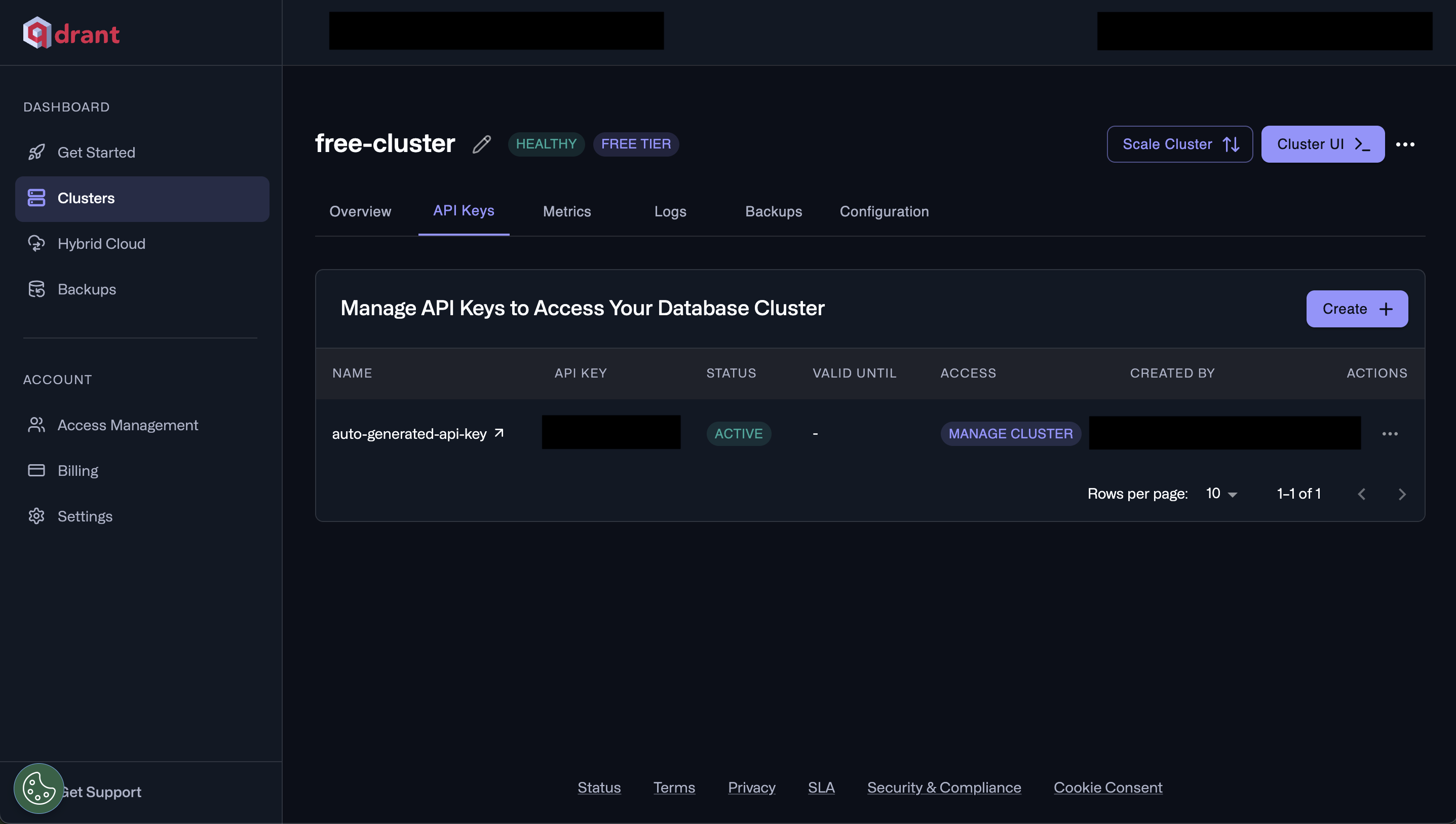
 **API Key:**
* Click on the API Keys tab.
* If you haven't created an API key before, click on "Create" to generate a new one. Make sure to copy the API Key as they are shown only once.
**API Key:**
* Click on the API Keys tab.
* If you haven't created an API key before, click on "Create" to generate a new one. Make sure to copy the API Key as they are shown only once.
 ## Step 3: Configure qdrant Connector in Your Application
Now that you have gathered all the necessary details, enter the following information in your application:
* **API Key:** The authentication key used to access your Qdrant cluster.
* **API Url:** The endpoint where your Qdrant cluster is hosted.
## Step 4: Test the Qdrant Connection
After configuring the connector in your application:
1. Save the configuration settings.
2. Test the connection to Qdrant from your application to ensure everything is set up correctly.
By following these steps, you've successfully set up a Qdrant destination connector in AI Squared.
### Supported sync modes
| Mode | Supported (Yes/No/Coming soon) |
| ---------------- | ------------------------------ |
| Incremental sync | YES |
| Full refresh | Coming soon |
This guide will help you seamlessly connect your AI Squared application to Qdrant, enabling you to leverage your cluster's full potential.
## Step 3: Configure qdrant Connector in Your Application
Now that you have gathered all the necessary details, enter the following information in your application:
* **API Key:** The authentication key used to access your Qdrant cluster.
* **API Url:** The endpoint where your Qdrant cluster is hosted.
## Step 4: Test the Qdrant Connection
After configuring the connector in your application:
1. Save the configuration settings.
2. Test the connection to Qdrant from your application to ensure everything is set up correctly.
By following these steps, you've successfully set up a Qdrant destination connector in AI Squared.
### Supported sync modes
| Mode | Supported (Yes/No/Coming soon) |
| ---------------- | ------------------------------ |
| Incremental sync | YES |
| Full refresh | Coming soon |
This guide will help you seamlessly connect your AI Squared application to Qdrant, enabling you to leverage your cluster's full potential.