> ## Documentation Index
> Fetch the complete documentation index at: https://docs.squared.ai/llms.txt
> Use this file to discover all available pages before exploring further.
# Open AI Model
## Connect AI Squared to Open AI Model
This guide will help you configure the Open AI Model Connector in AI Squared to access your Open AI Model Endpoint.
### Prerequisites
Before proceeding, ensure you have the necessary API key from Open AI.
## Step-by-Step Guide to Connect to an Open AI Model Endpoint
## Step 1: Navigate to Open AI Console
Start by logging into your Open AI Console.
1. Sign in to your Open AI account at [Open AI](https://platform.openai.com/docs/overview).
## Step 2: Locate Developer Access
Once you're in the Open AI, you'll find the necessary configuration details:
1. **API Key:**
* Click the gear icon on the top right corner.
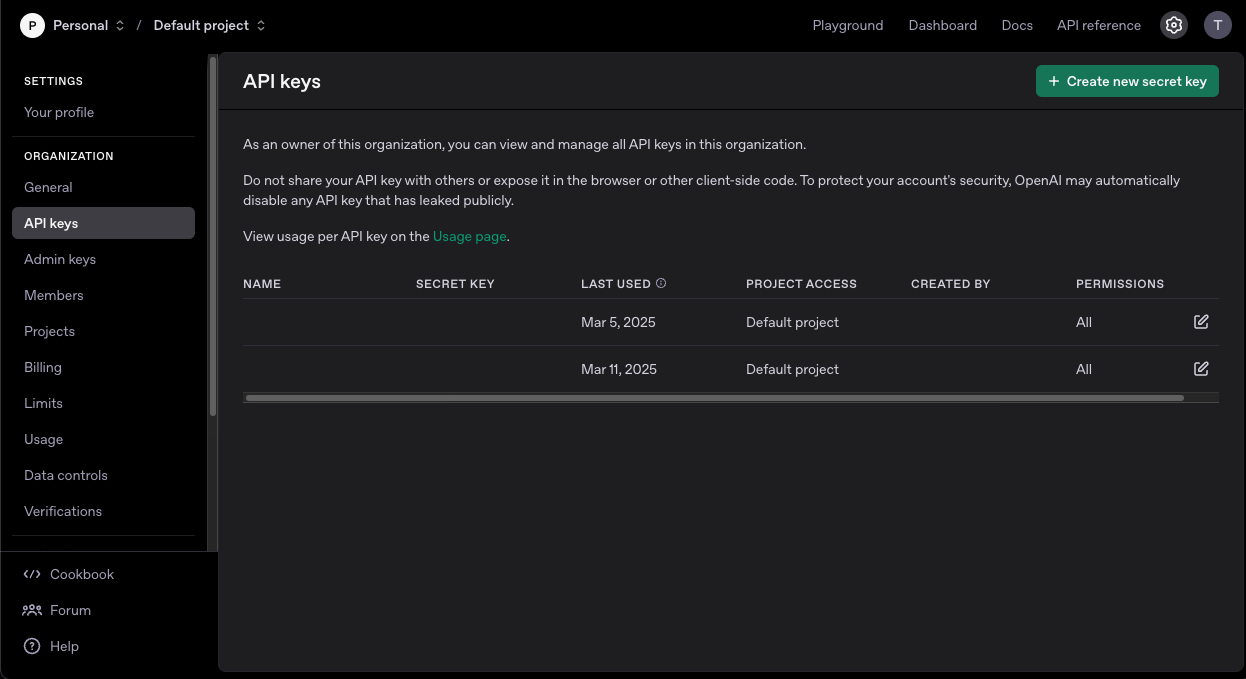
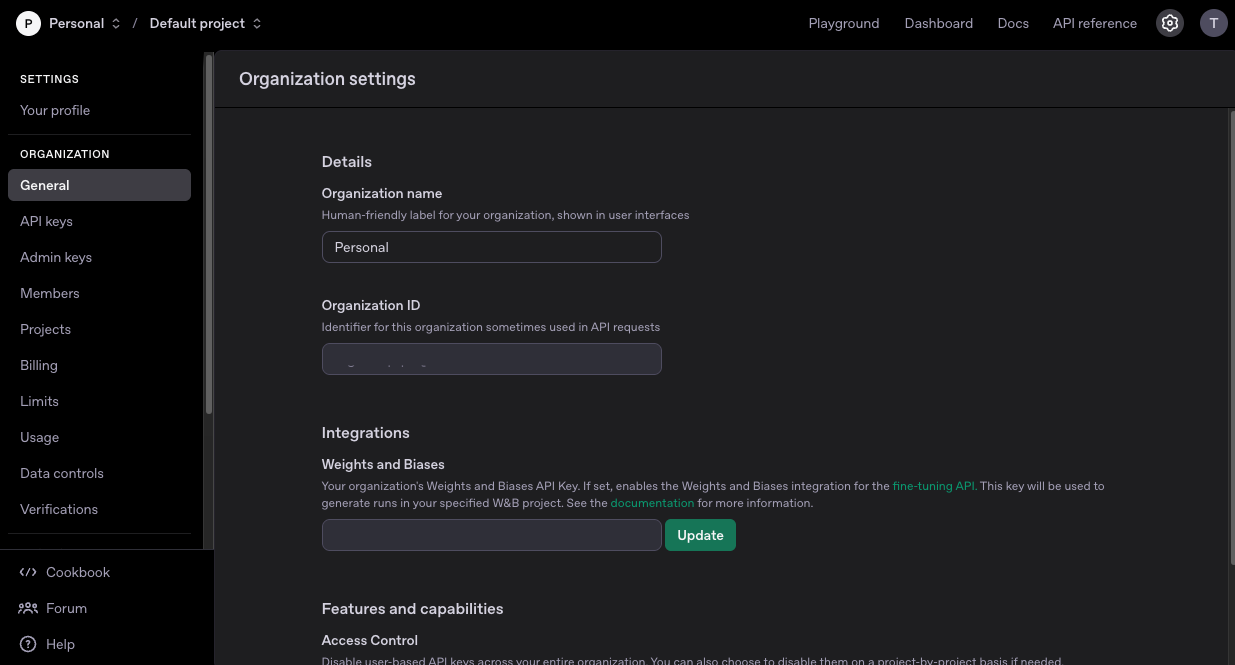 * Click on "API keys" to view your API keys.
* If you haven't created an API Key before, click on "Create new secret key" to generate a new one. Make sure to copy the API Key as they are shown only once.
* Click on "API keys" to view your API keys.
* If you haven't created an API Key before, click on "Create new secret key" to generate a new one. Make sure to copy the API Key as they are shown only once.
 ## Step 3: Configure Open AI Model Connector in Your Application
Now that you have gathered all the necessary details enter the following information:
* **API Key:** Your Open ai API key.
## Step 3: Configure Open AI Model Connector in Your Application
Now that you have gathered all the necessary details enter the following information:
* **API Key:** Your Open ai API key.