> ## Documentation Index
> Fetch the complete documentation index at: https://docs.squared.ai/llms.txt
> Use this file to discover all available pages before exploring further.
# Google Vertex Model
## Connect AI Squared to Google Vertex Model
This guide will help you configure the Google Vertex Model Connector in AI Squared to access your Google Vertex Model Endpoint.
### Prerequisites
Before proceeding, ensure you have the necessary project id, endpoint id, region, and credential json from Google Vertex.
## Step-by-Step Guide to Connect to an Google Vertex Model Endpoint
## Step 1: Navigate to Google Cloud Console
Start by logging into your Google Cloud Console.
1. Sign in to your google cloud account at [Google Cloud Console](https://console.cloud.google.com/).
## Step 2: Enable Vertex API
* If you don't have a project, create one.
* Enable the [Vertex API for your project](https://console.cloud.google.com/apis/library/aiplatform.googleapis.com).
## Step 3: Locate Google Vertex Configuration Details
1. **Project ID, Endpoint ID, and Region:**
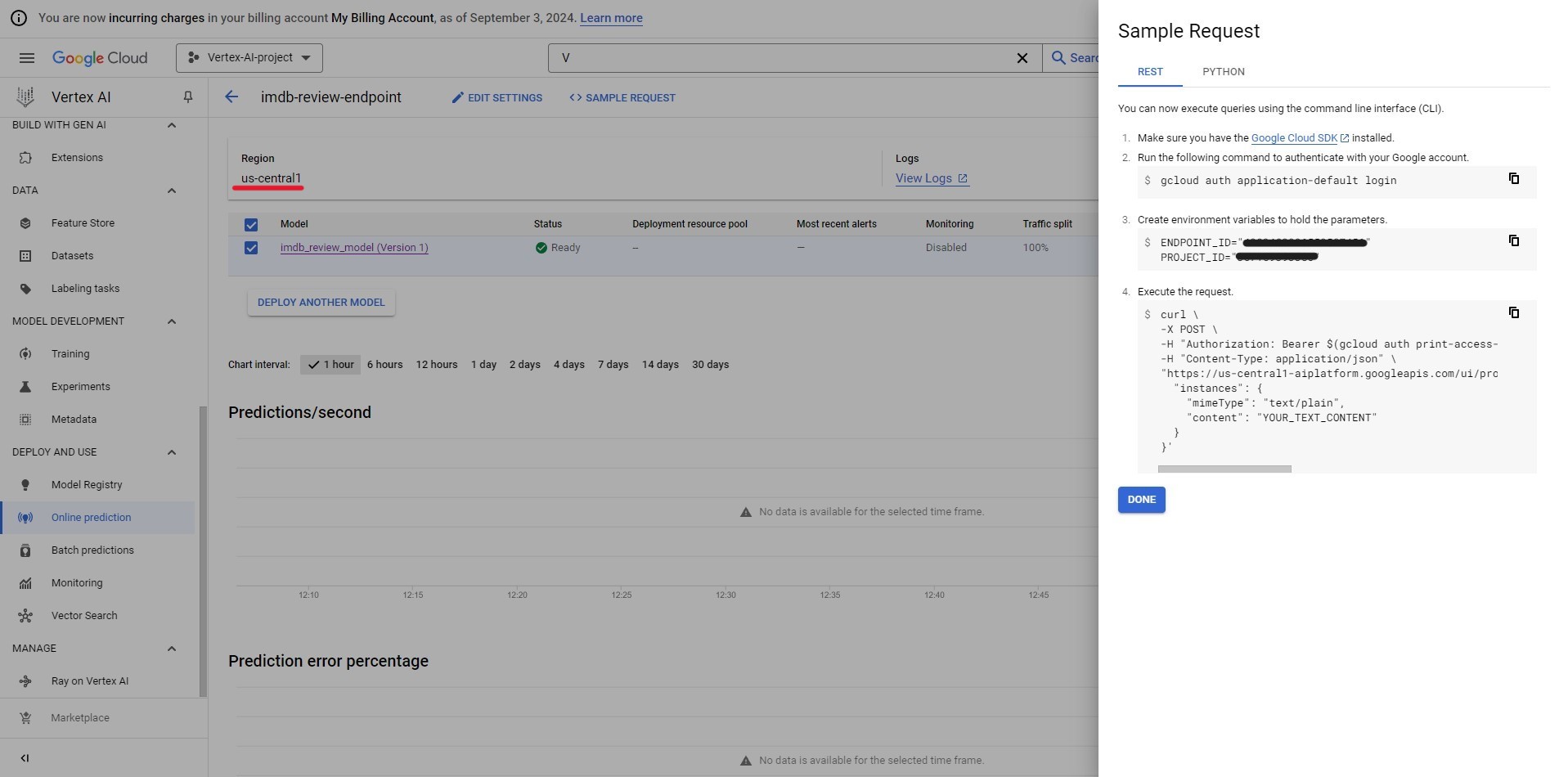
* In the search bar search and select "Vertex AI".
* Choose "Online prediction" from the menu on the left hand side.
* Select the region where your endpoint is and select your endpoint. Note down the Region that is shown.
* Click on "SAMPLE REQUEST" and note down the Endpoint ID and Project ID
 2. **JSON Key File:**
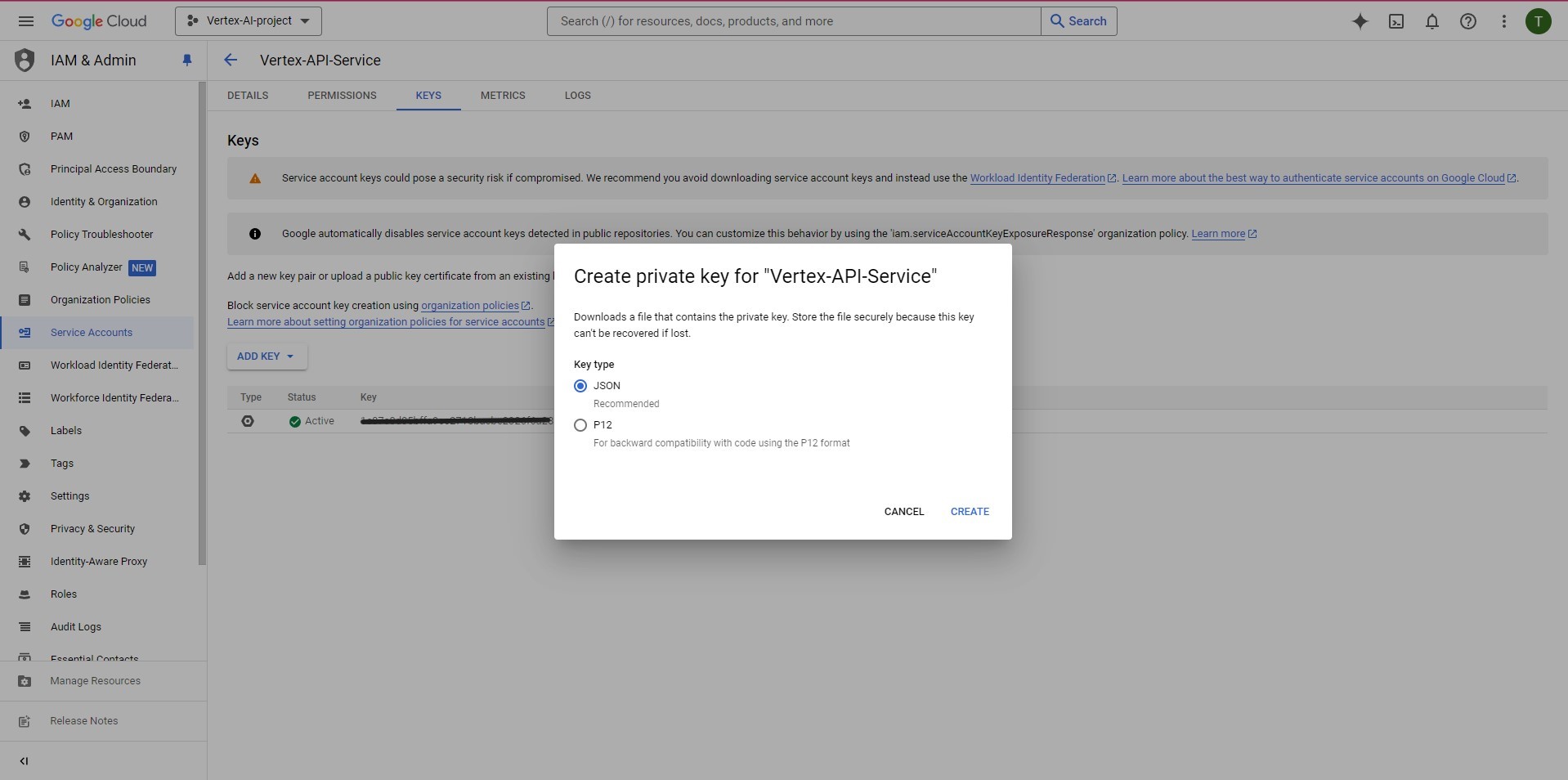
* In the search bar search and select "APIs & Services".
* Choose "Credentials" from the menu on the left hand side.
* In the "Credentials" section, you can create or select your service account.
* After selecting your service account goto the "KEYS" tab and click "ADD KEY". For Key type select JSON.
2. **JSON Key File:**
* In the search bar search and select "APIs & Services".
* Choose "Credentials" from the menu on the left hand side.
* In the "Credentials" section, you can create or select your service account.
* After selecting your service account goto the "KEYS" tab and click "ADD KEY". For Key type select JSON.
 ## Step 3: Configure Google Vertex Model Connector in Your Application
Now that you have gathered all the necessary details enter the following information:
* **Project ID:** Your Google Vertex Project ID.
* **Endpoint ID:** Your Google Vertex Region ID.
* **Region:** The Endpoint region where your Google Vertex resources are located.
* **JSON Key File:** The JSON key file containing the authentication credentials for your service account.
## Step 3: Configure Google Vertex Model Connector in Your Application
Now that you have gathered all the necessary details enter the following information:
* **Project ID:** Your Google Vertex Project ID.
* **Endpoint ID:** Your Google Vertex Region ID.
* **Region:** The Endpoint region where your Google Vertex resources are located.
* **JSON Key File:** The JSON key file containing the authentication credentials for your service account.