> ## Documentation Index
> Fetch the complete documentation index at: https://docs.squared.ai/llms.txt
> Use this file to discover all available pages before exploring further.
# OpenAI Compatible Endpoint
> Connect AI Squared to any OpenAI-compatible API endpoint.
## Connect AI Squared to an OpenAI Compatible Endpoint
This guide will help you configure the OpenAI Compatible Endpoint Connector in AI Squared to access any OpenAI-compatible API endpoint, such as OpenAI itself, self-hosted models, or third-party providers that implement the OpenAI API spec.
### Prerequisites
Before proceeding, ensure you have:
* The **endpoint URL** of the OpenAI-compatible API you want to connect to.
* A valid **API key** for that endpoint.
## Step-by-Step Guide to Connect to an OpenAI Compatible Endpoint
## Step 1: Obtain Your Endpoint URL
Identify the URL of the OpenAI-compatible API you want to use. The connector sends requests to this exact URL, so it must be the full chat completions endpoint path.
* For OpenAI, use `https://api.openai.com/v1/chat/completions`.
* For self-hosted or third-party providers, use the URL documented by that provider (for example, `https://your-host.example.com/v1/chat/completions`).
The connector uses the URL configured on the source. Make sure the URL points to a chat completions endpoint that follows the OpenAI API spec.
## Step 2: Obtain Your API Key
If you are connecting to OpenAI, follow these steps to retrieve your API key:
1. Sign in to your Open AI account at [Open AI](https://platform.openai.com/docs/overview).
2. Click the gear icon on the top right corner.
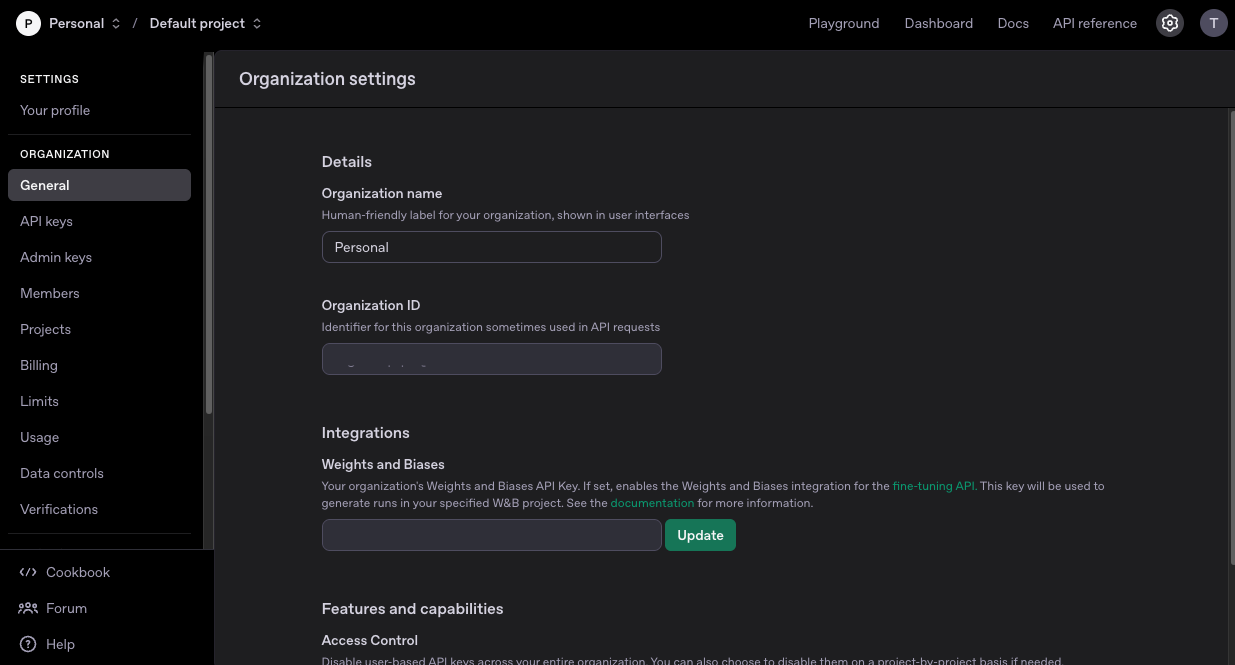 3. Click on "API keys" to view your API keys.
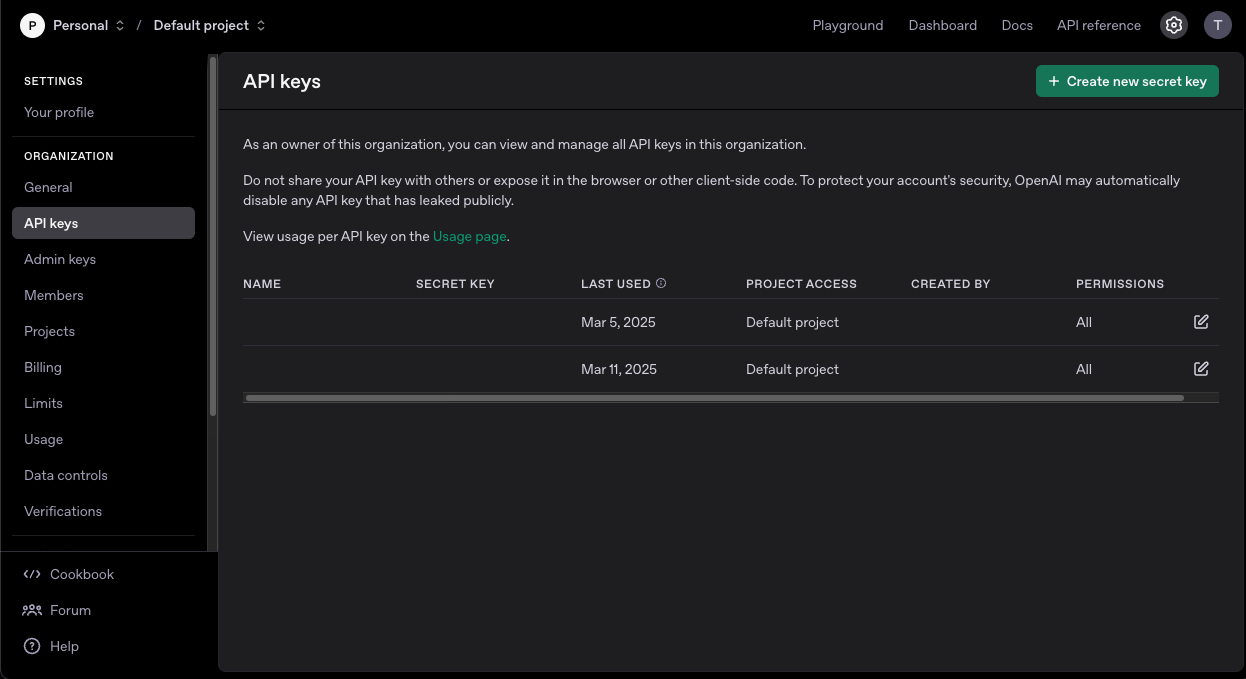
4. If you haven't created an API Key before, click on "Create new secret key" to generate a new one. Make sure to copy the API Key as they are shown only once.
3. Click on "API keys" to view your API keys.
4. If you haven't created an API Key before, click on "Create new secret key" to generate a new one. Make sure to copy the API Key as they are shown only once.
 For non-OpenAI providers, refer to the provider's documentation to obtain an API key.
## Step 3: Configure the OpenAI Compatible Endpoint Connector in Your Application
Now that you have gathered all the necessary details, enter the following information:
| Field | Description |
| -------------------- | ----------------------------------------------------------------------------------------------------------------------------------------- |
| **Endpoint URL** | The full URL of the chat completions endpoint that follows the OpenAI API spec. Defaults to `https://api.openai.com/v1/chat/completions`. |
| **API Key** | Your OpenAI API key or the API key for your OpenAI-compatible endpoint. |
| **Enable streaming** | Enables data streaming when supported by the model. When `true`, responses are processed in chunks for faster delivery. |
| **HTTP Timeout** | Maximum time, in seconds, to wait for a response from the server before the request is canceled. Defaults to `30`. |
| **Request Format** | A sample request body that matches the OpenAI chat completions spec. |
| **Response Format** | A sample response body that matches the OpenAI chat completions spec. |
For non-OpenAI providers, refer to the provider's documentation to obtain an API key.
## Step 3: Configure the OpenAI Compatible Endpoint Connector in Your Application
Now that you have gathered all the necessary details, enter the following information:
| Field | Description |
| -------------------- | ----------------------------------------------------------------------------------------------------------------------------------------- |
| **Endpoint URL** | The full URL of the chat completions endpoint that follows the OpenAI API spec. Defaults to `https://api.openai.com/v1/chat/completions`. |
| **API Key** | Your OpenAI API key or the API key for your OpenAI-compatible endpoint. |
| **Enable streaming** | Enables data streaming when supported by the model. When `true`, responses are processed in chunks for faster delivery. |
| **HTTP Timeout** | Maximum time, in seconds, to wait for a response from the server before the request is canceled. Defaults to `30`. |
| **Request Format** | A sample request body that matches the OpenAI chat completions spec. |
| **Response Format** | A sample response body that matches the OpenAI chat completions spec. |